Prerequisites
Before you begin, make sure you have:
- Admin access to your Growth99 business account.
- Business accounts for Instagram and Facebook.
- Admin permissions for the social media accounts you want to connect
Navigation Path
Log in to Growth99 → Business Settings → Social Media Integration.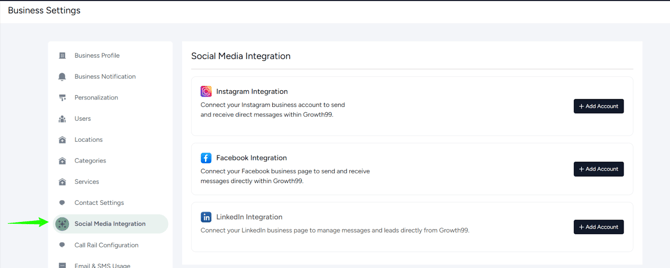
Instagram Integration
Connect Instagram
- In the Instagram Integration section, click Add Account.
- You will be redirected to the Facebook/Instagram login page.
- Log in using the Facebook account that manages your Instagram Business account.
- Select the Facebook Pages you want Growth99 to access.
- Choose the Instagram Business account you want to connect.
- Click Confirm and Save to complete the integration.
What You Can Do After Connecting
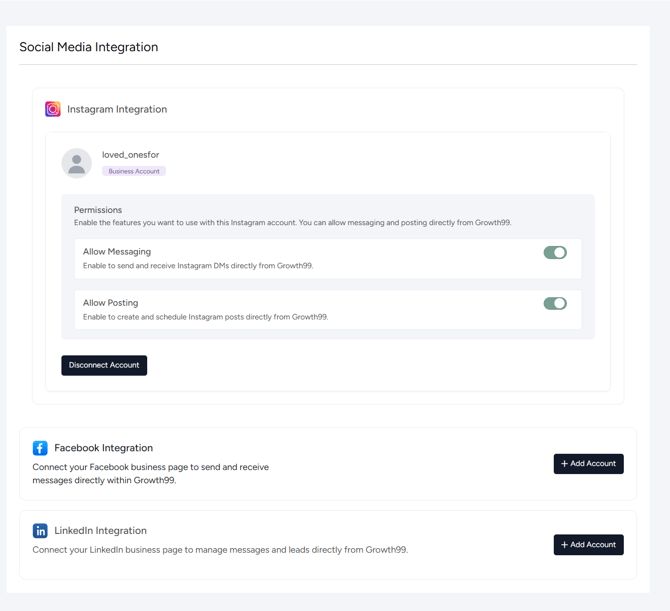
- Allow Messaging: Send and receive Instagram DMs directly from Growth99.
- Allow Posting: Create and schedule Instagram posts directly from Growth99.
Note: Personal Instagram accounts are not supported. The account must be a Business or Creator account linked to a Facebook Page.
Facebook Integration
Connect Facebook
- In the Facebook Integration section, click Add Account.
- Log in to Facebook when prompted.
- Grant Growth99 access to your Facebook Pages and messages.
- Select the Facebook Business Page you want to connect.
- Complete the authorization process.
What You Can Do After Connecting
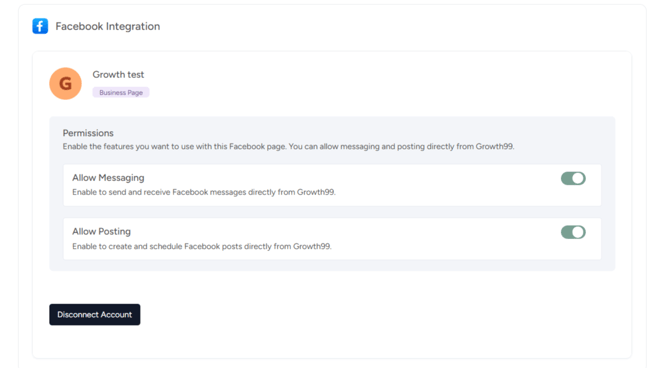
- Allow Messaging: Send and receive Facebook messages directly from Growth99.
- Allow Posting: Create and schedule Facebook posts directly from Growth99.
LinkedIn Integration
Connect LinkedIn
- Scroll to the LinkedIn Integration section.
- Click Add Account.
- Log in using your LinkedIn credentials.
- Once connected, your LinkedIn profile or page will appear in the integration list.
What You Can Do After Connecting
- Allow Posting: Create and schedule LinkedIn posts directly from Growth99.
(Note: Messaging is not supported for LinkedIn.)
Manage Connected Accounts
From the Social Media Integration screen, you can:
- View all connected social media accounts by platform.
- Verify the connected username, page, or profile.
- You can disconnect or reconnect your social media accounts at any time.
- Enable or disable messaging and posting features based on your business needs.
Manage Posts
This section explains how to create, label, schedule, and approve social media posts in Growth99.
Navigation Path
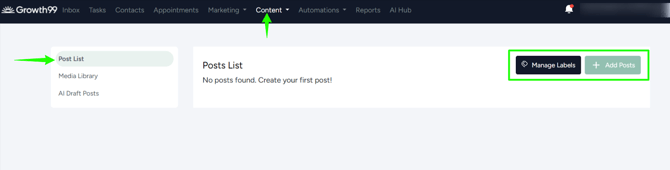
Top Menu → Content → Social Media Manager
Create and Manage Labels
- On the Post List page, click Manage Labels.
- Create labels to organize posts (for example, Promotions, Education, Events).
- Save labels for reuse across multiple posts.
Add a New Post
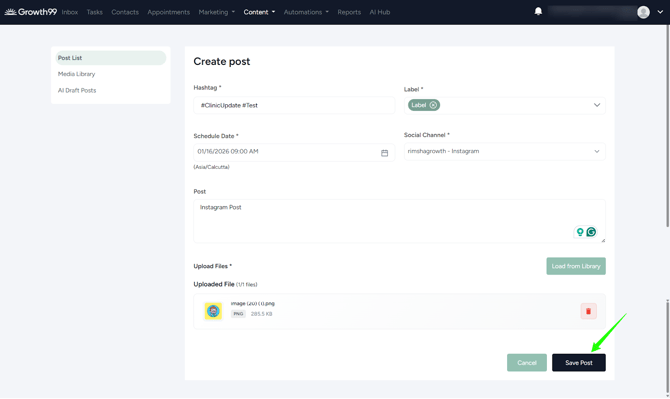
- Click Add Post.
- Enter the post content.
- Add relevant hashtags.
- Select a label.
- Choose the social media channel(s).
- Select the posting date and time.
- Upload an image if required.
Important: An image is mandatory for Instagram posts. Posts without an image cannot be published to Instagram.
- Click Save to create the post.
Edit or Approve a Post
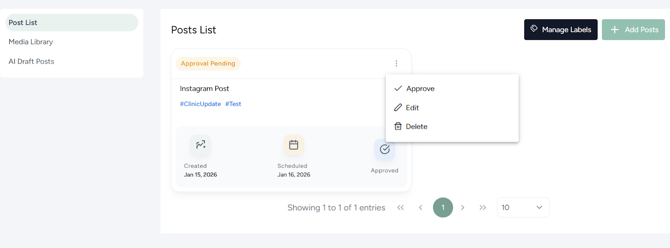
- Click the three-dot (⋮) menu next to a post.
- Select Edit to make changes.
- Select Approve to approve the post for publishing.