Phorest integration sends data one way, from Growth99 to Phorest: every contact or appointment created in Growth99 is created in Phorest as a client.
Step 1: Access the Phorest Integration in Growth99+- Log in to Growth99+ using your credentials at app.growth99.com.
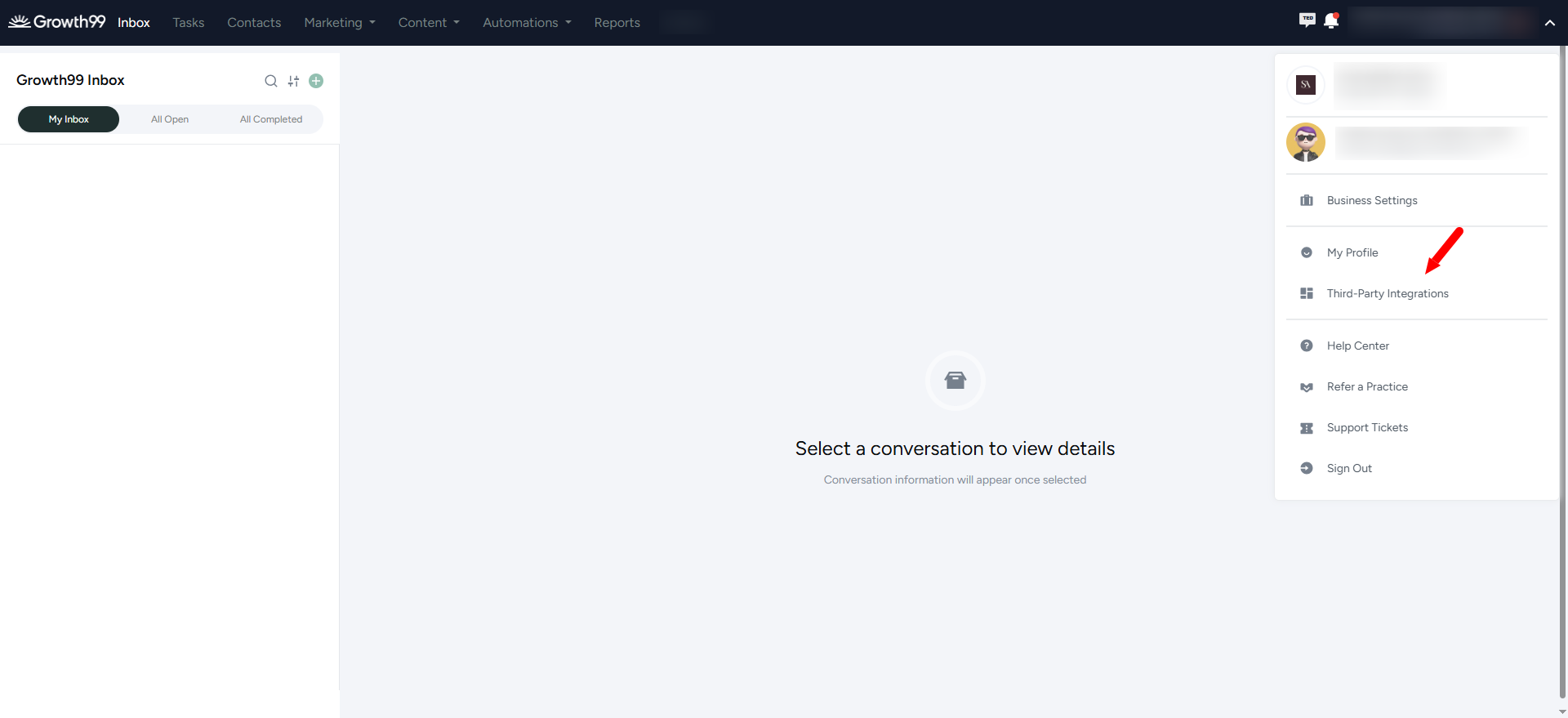
- Navigate to your profile to access integration settings.
- Click on Third-Party Integrations.
- Under API Integration, select the Data Outgoing tab, locate Phorest, and click Connect.
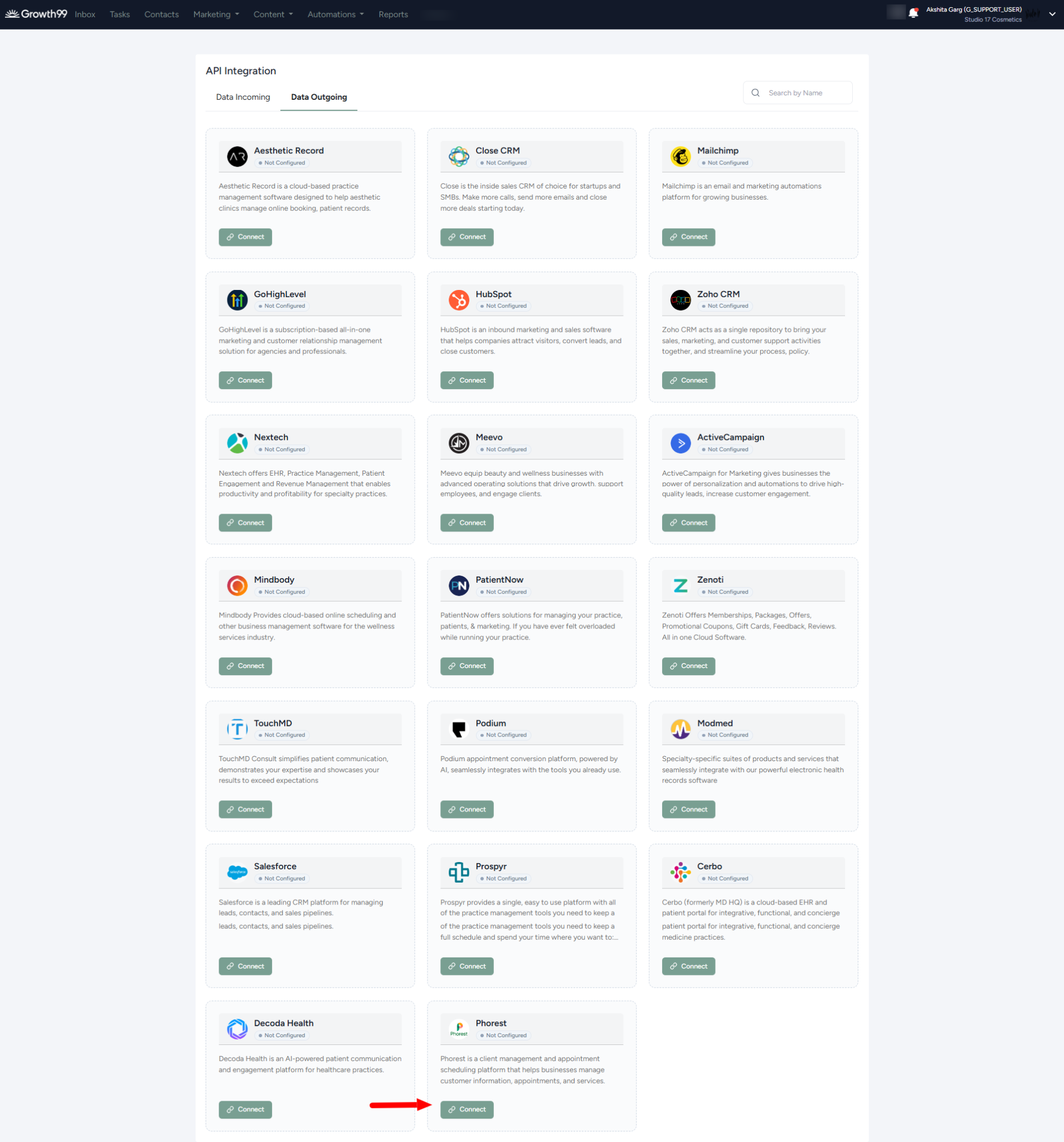
This setup allows contacts and appointment data to flow from Growth99+ to Phorest.
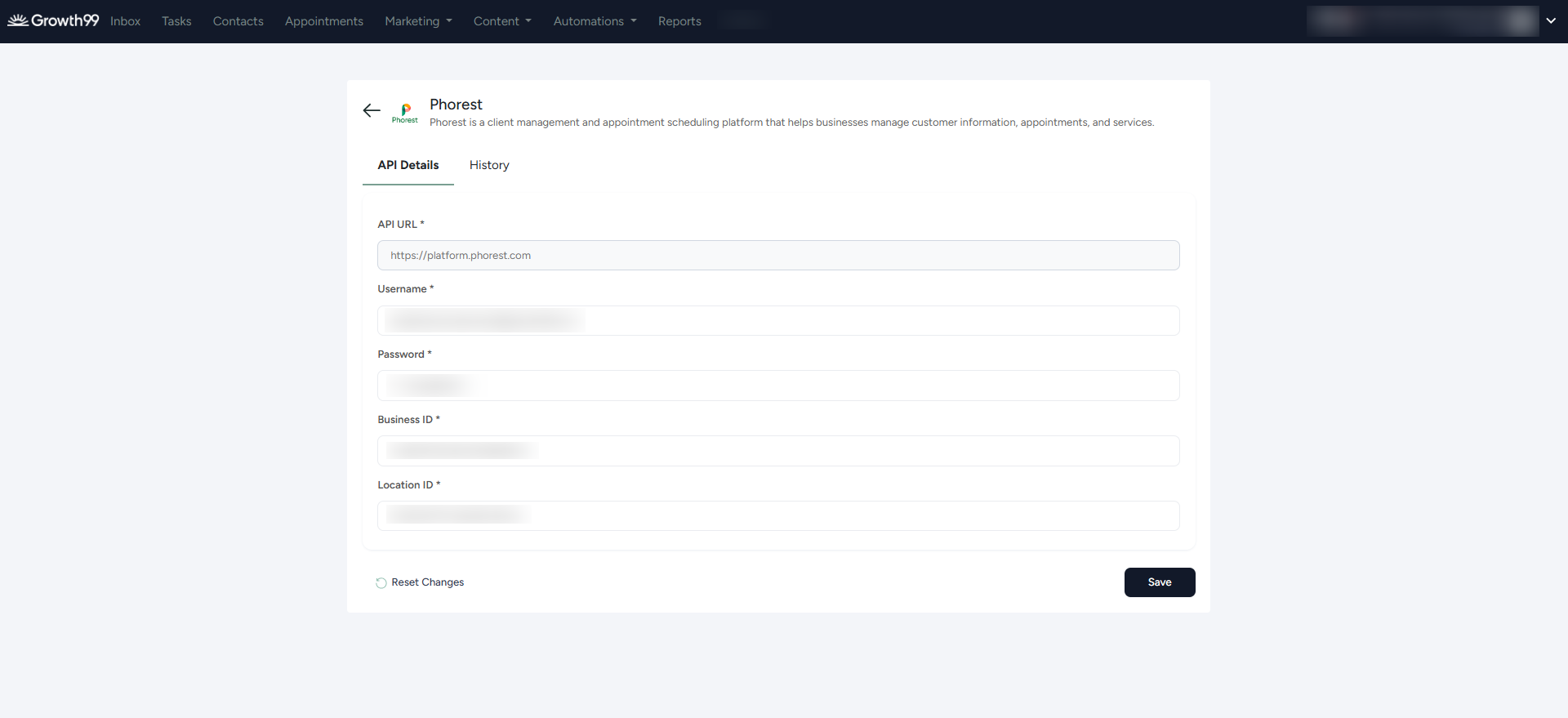
- Enter the Username, Password, and Business ID provided when the Phorest account got created.
- To complete the setup, you also need to add a Location ID. To find your Location ID, log in to your Phorest account using your credentials and navigate to "Manager."
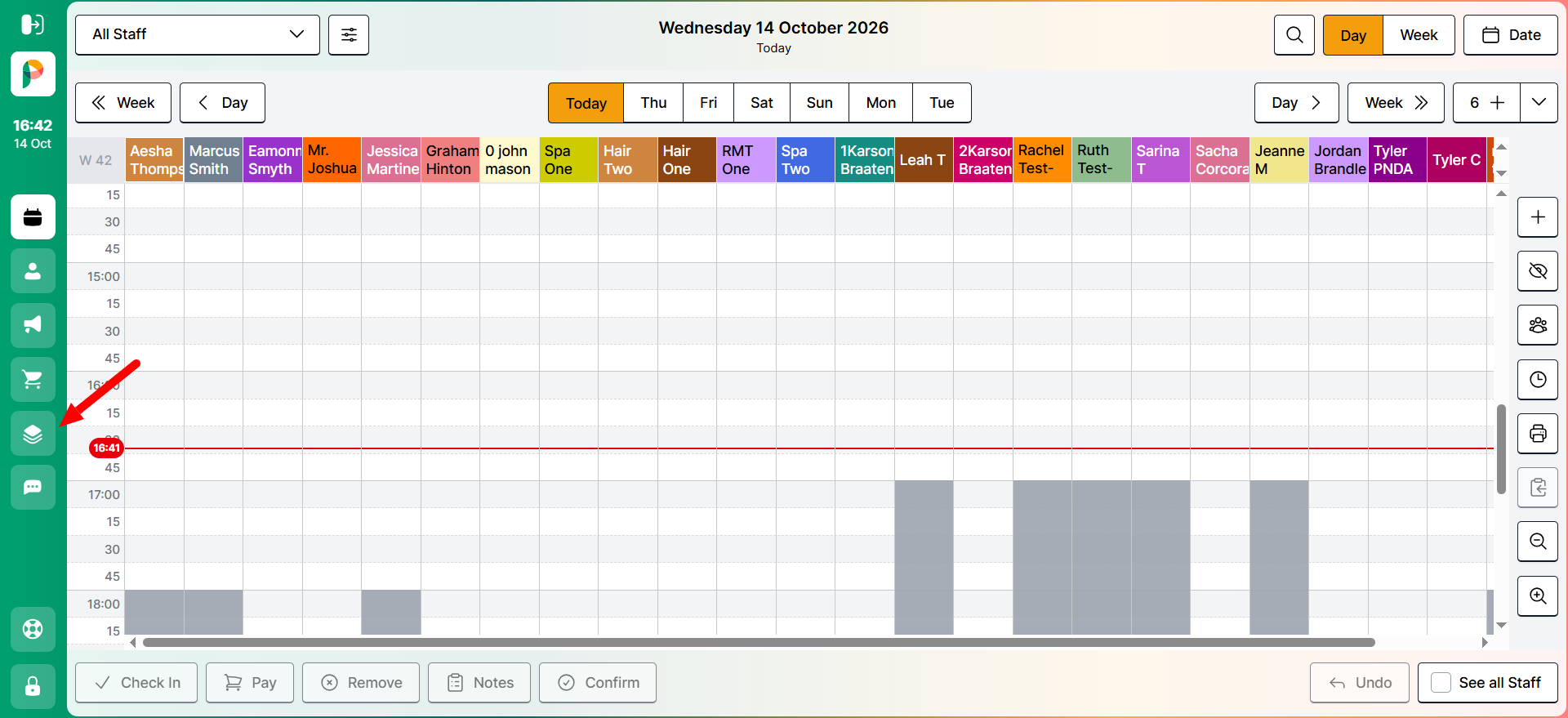
- In Manager, go to Settings to locate your Location ID.
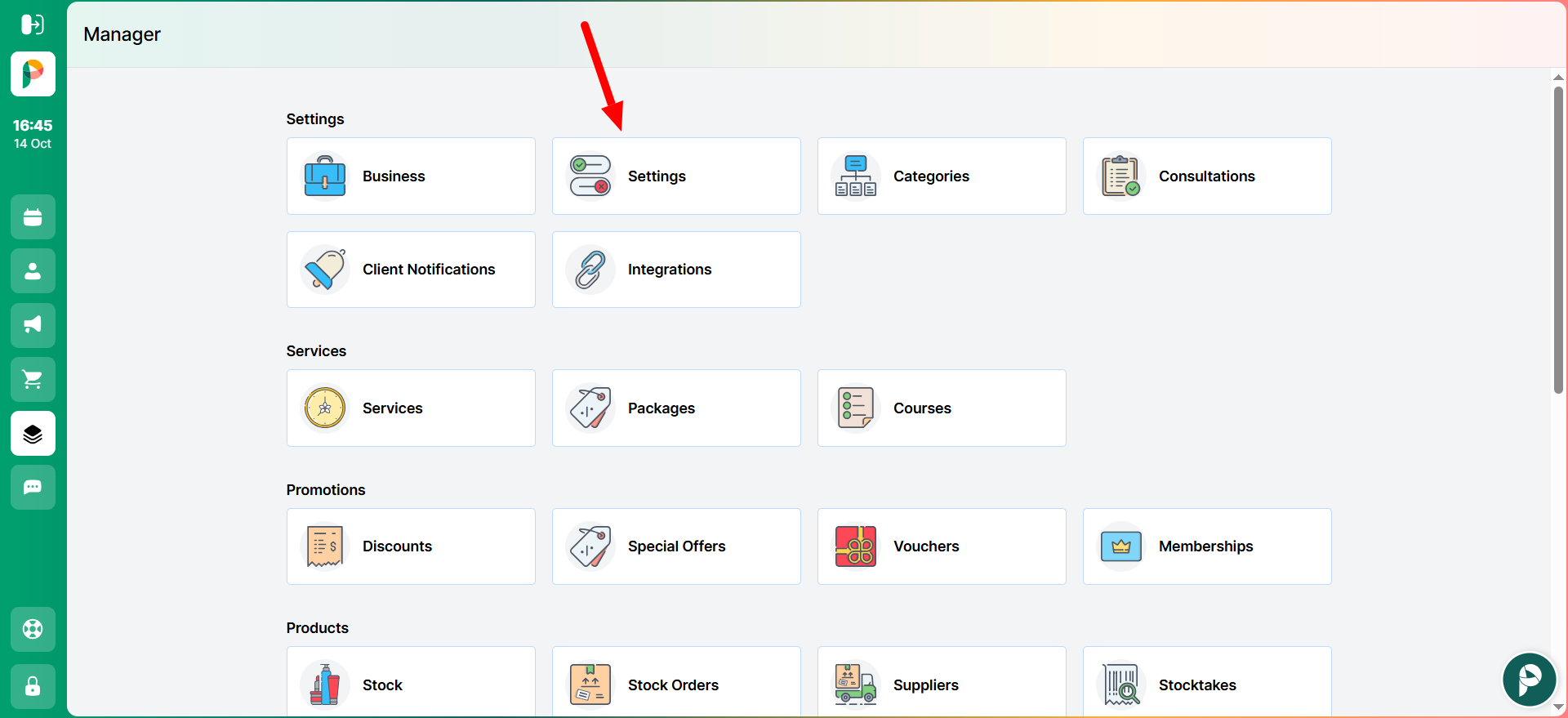
- Copy the Location ID from the browser's address bar.
The URL contains both the Business ID and the Branch ID:
my.phorest.com/.../businesses/<Business ID>/branches/<Branch ID>/settings/...
- The Branch ID serves as the Location ID. Copy this value. You can also copy the Business ID from here if you do not already have it.

- Enter all required details into the Growth99+ Phorest Integration settings and click Save to complete the setup and enable outgoing data synchronization.
Step 3: Test Phorest Integration in Growth99 and Phorest
- Growth99 logs every call to Phorest in the History tab, including its status and the reason if it failed.
- On the Phorest card, click Manage.
- Open the History tab (next to API Details).
- Each row shows the status (Success or Failed), the data sent (request), Phorest's reply (response), and the date.
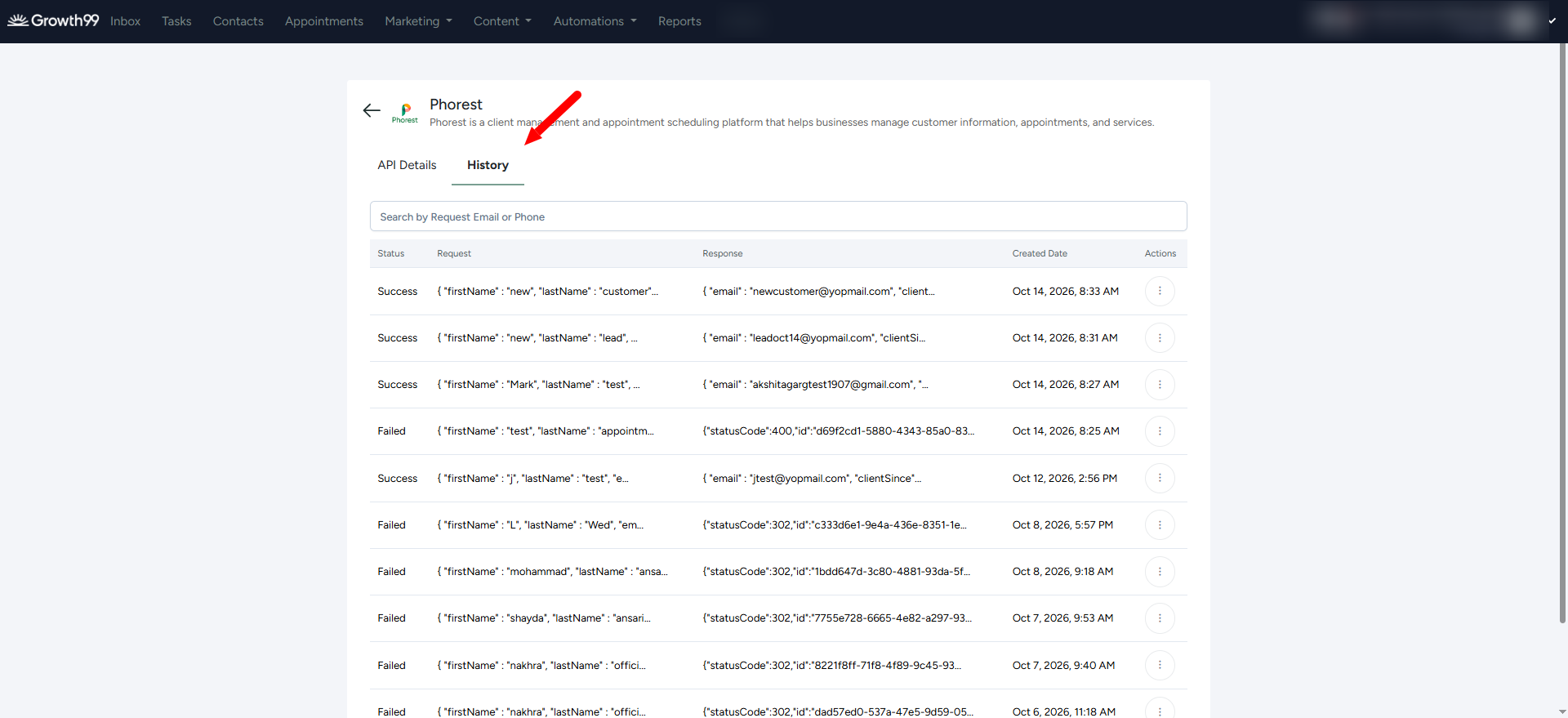
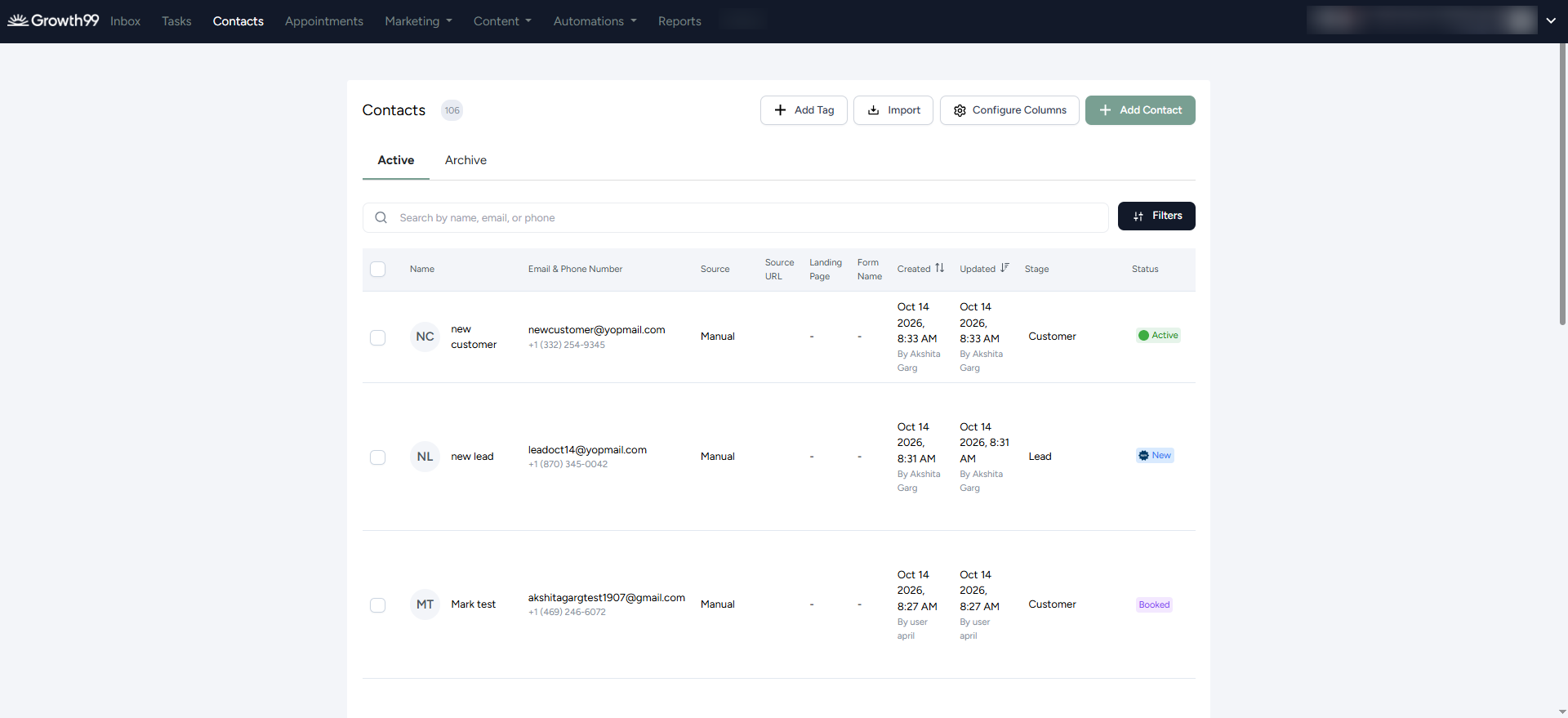
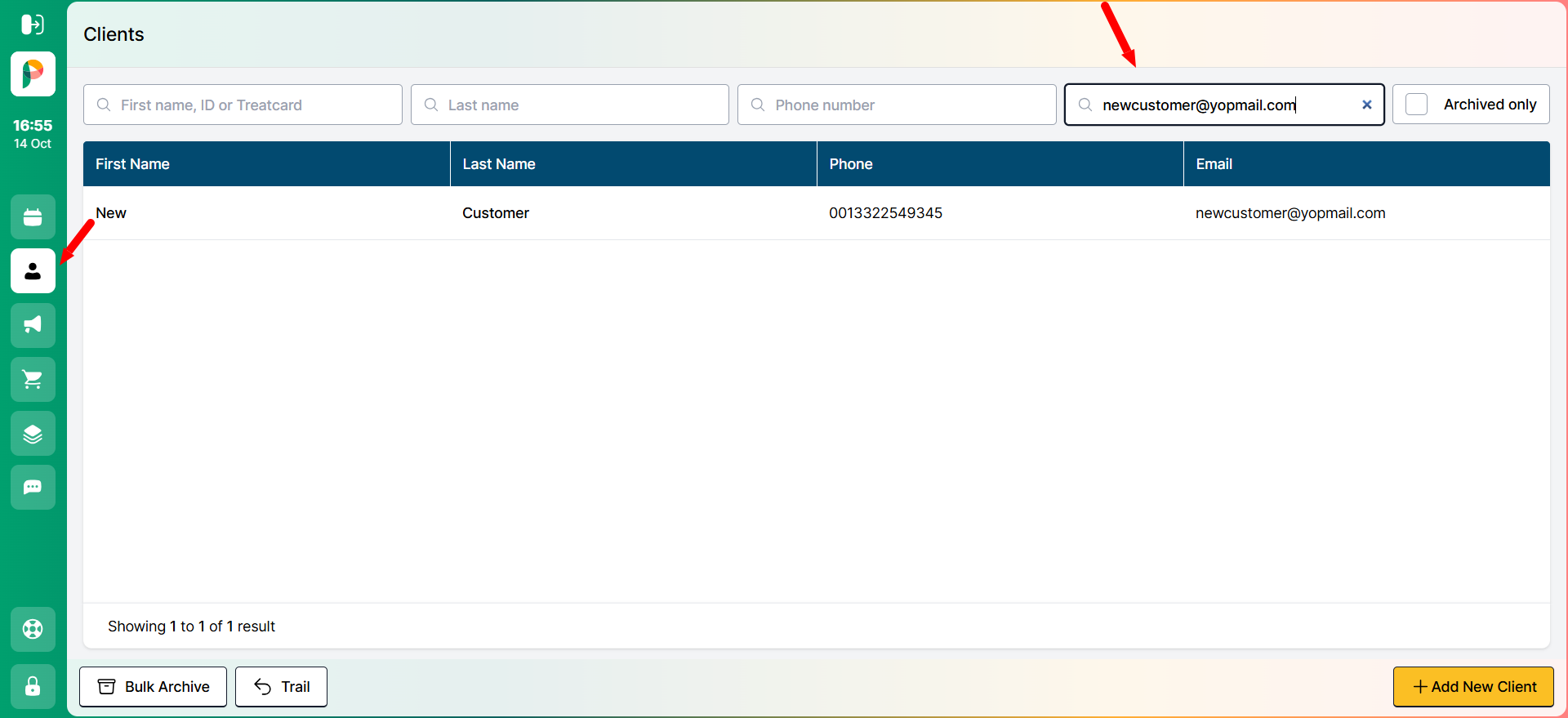
- Verify that data reached Phorest: To confirm a record has synced successfully, search for it by email in both Growth99+ History and Phorest Clients.
Step 4: Disable or Disconnect Phorest Integration in Growth99+
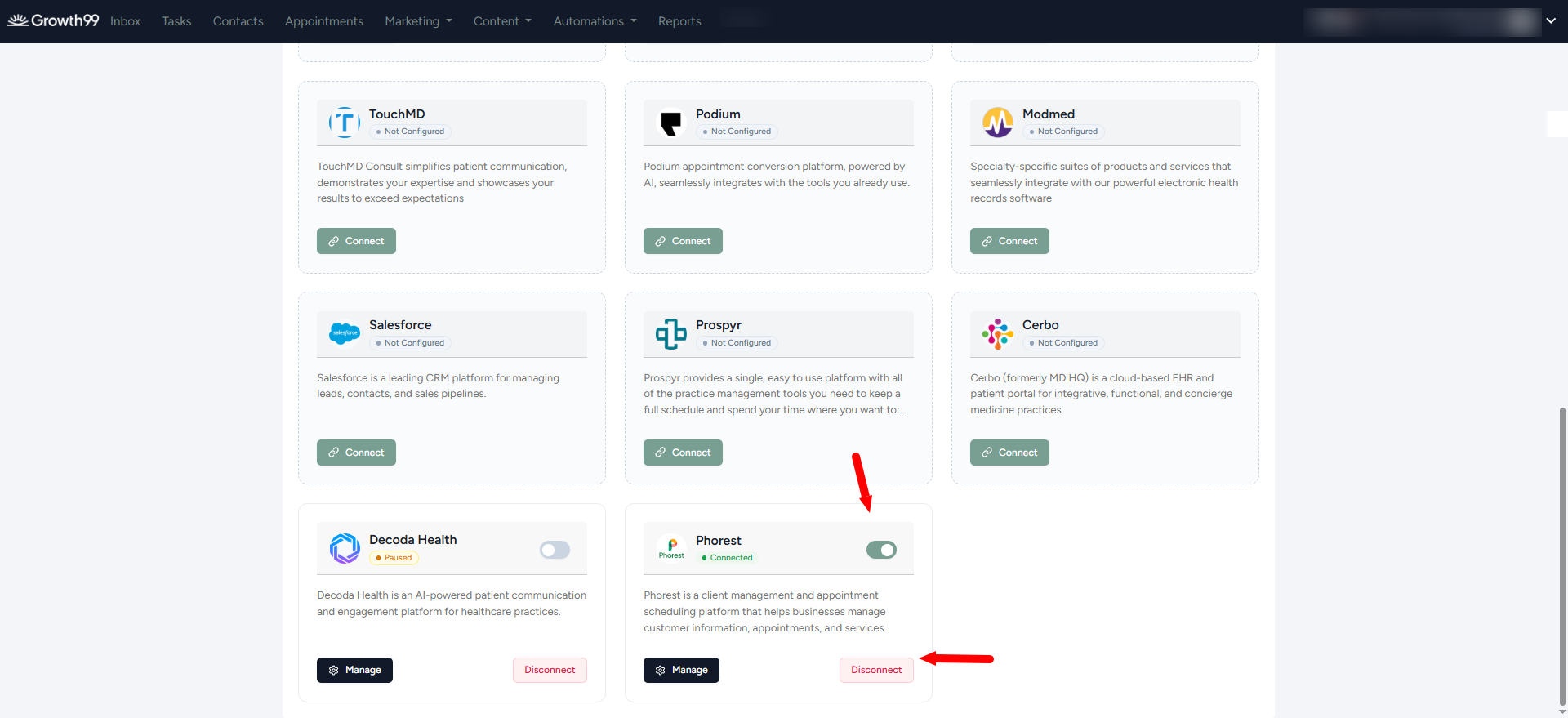
1. Disable (toggle on the Phorest card): Pauses syncing while retaining your settings. Turn the toggle back on to resume.
2. Disconnect (button on the Phorest card): Removes the connection between Growth99+ and Phorest.