
Step 1: Log in to the Growth99+ Application
1. Access the Review Manager
- Go to https://app.growth99.com/ and login to your Growth99+ application
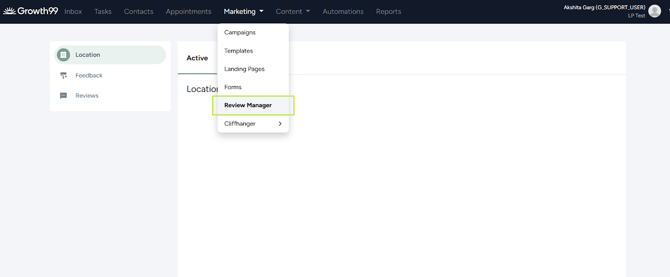
- Go to "Marketing" in the top menu and select "Review Manager" from the dropdown.
- On the "Location" page, click the "Inactive" tab, then click "Set Up
next to the clinic with "Setup Pending" to configure Google Business Profile.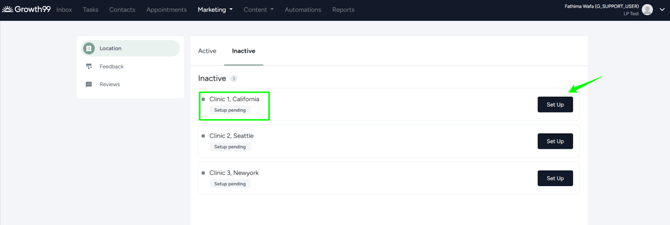
NOTE
- "Active" and "Inactive":
- "Active" means the platform (Google, Facebook, Demandforce, Yelp) has been set up and reviews are being fetched.
- "Inactive" means no platform has been set up yet, and reviews are not being fetched.
Step 2: Customize Your Review Prompt page
- When clicking the Set Up button, you'll be taken to the “Customize Your Review Prompt" page.
- Form Details
- Page Title: The heading shown to users before they rate (e.g., “Rate your experience”).
- Page Description: A short message explaining what they should do (e.g., “Please rate your experience with us on scale from 5 to 10”).
- Form Settings
- Rating Scale Preview: Displays 0–10 with contextual labels like “My experience wasn’t good” (left) to “My experience was great” (right).
- Redirect for review if rating is: Specifies a threshold (e.g., “8 and above”)—ratings at or above this will redirect the user to leave a review.
- Negative side / Positive side messages:
- Negative prompt: “My experience wasn’t good…”
- Positive prompt: “My experience was good…”
- These appear based on the user's rating sentiment.
Click "Continue" to go to the "Setup Review Configuration"page.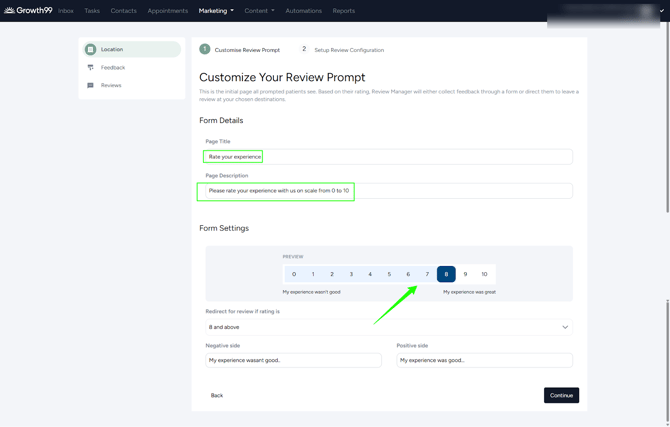
Step 3 : Setup Review Configuration
To configure reviews from different platforms, click "Setup Review Configuration" under "Platform Configuration."
You will see four available channels: Google, Facebook, Yelp, and DemandForce.
Select a channel, enter the required details, and click "Save" to start fetching reviews.
To fetch reviews, provide your Google Business Profile.
Facebook Review Configuration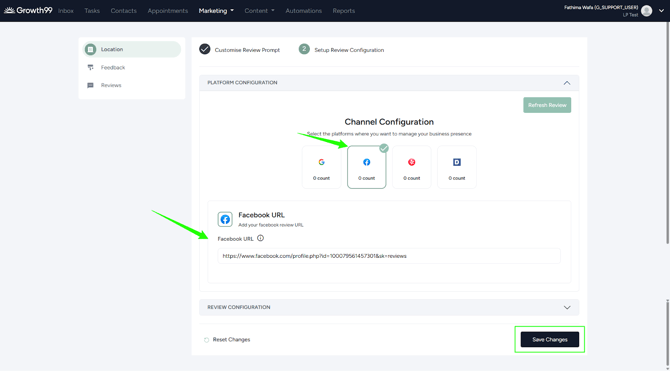
Add in your Facebook page URL and click "Save" changes. The status will change to "IN PROGRESS."
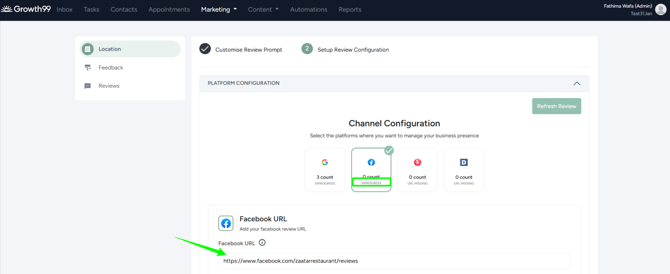
Fetching may take about an hour, depending on the number of reviews. When the reviews have been successfully fetched, the status will show as 'COMPLETED'.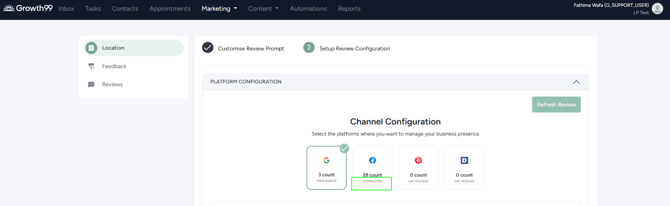
Note: In the process above, Facebook reviews have been set up. The same steps can be followed for Demandforce and Yelp.
Step 4: Review Configuration
Click the "Review Configuration" section to access and customize the review display settings. Check the "Enable Review Manager" checkbox.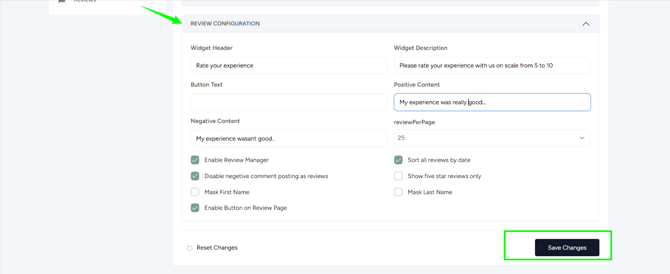
You can edit fields such as:
Widget Appearance
- Widget Header: "Rate your experience."
- Widget Description: "Please rate your experience with us on a scale from 0 to 10."
- Button Text: "Reviews."
Review Text Settings
- Positive Content: "My experience was good..."
- Negative Content: "My experience wasn't good.."
Display Settings
- reviewPerPage: 25 (can be increased up to 75)
Enabled Options
- Enable Review Manager
- Disable negative comment posting as reviews
- Enable Button on Review Page
- Sort all reviews by date
- Show five-star reviews only
Privacy Options
- Mask First Name
- Mask Last Name (both currently disabled)
Adjust the review settings as needed, then click "Save."
Step 5: Previewing the reviews fetched
Once the configurations are saved and channels are linked, you can preview the imported reviews.
- Click the "Preview" button located in the top-right corner of the "Active" tab on the location page.
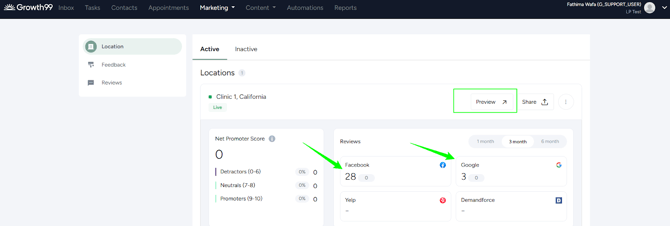
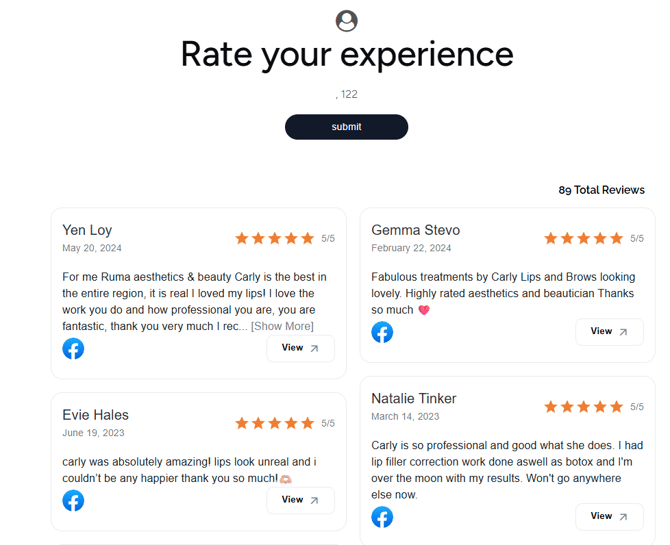
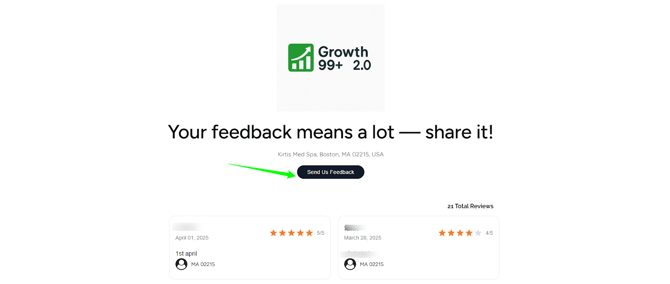 Customers can leave reviews by clicking the "Send Us Feedback" button. This button can be customized in the review configuration section.
Collecting Reviews from Users
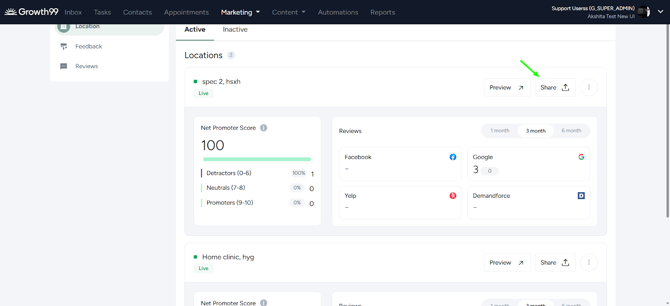
- Go to the "Location" and select the "Active" module in "Review Manager."
- Click on the "Share" option to access the "Brochure," "QR Code," "Widget Integration Section," and "Form URL."

Step 6: Feedback Page
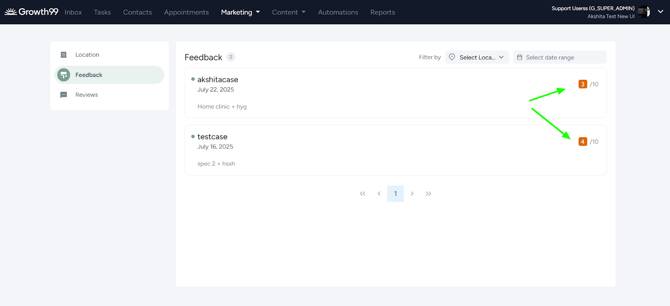
The "Feedback" page serves as a centralized location to display all the negative reviews that were not published on the website due to system filters (such as low ratings or flagged negative content). While these reviews are hidden from public view, they are stored internally so that business users can review, monitor, and take action if needed.
Key Features:
- Displays reviewer name, date of feedback, and associated service/specialty.
- Shows the rating score out of 10 in a color-coded format.
- Reviews are listed chronologically with pagination.
- Users can filter feedback by location or date range using the top-right filters.
Purpose:
To provide transparency and enable businesses to track and respond to less favorable customer experiences that don’t meet the criteria for public posting, while still maintaining complete visibility.
Receiving Negative Feedback:
When a client gives a low rating, they are redirected to a feedback form where they can share more details about their experience.
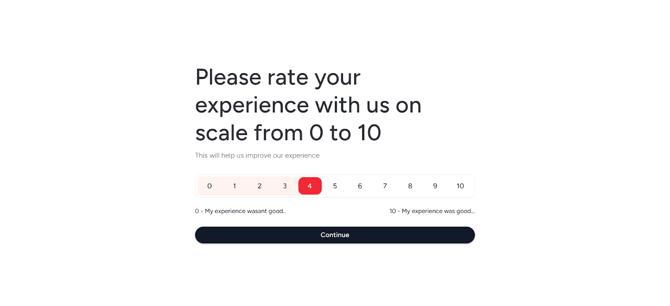
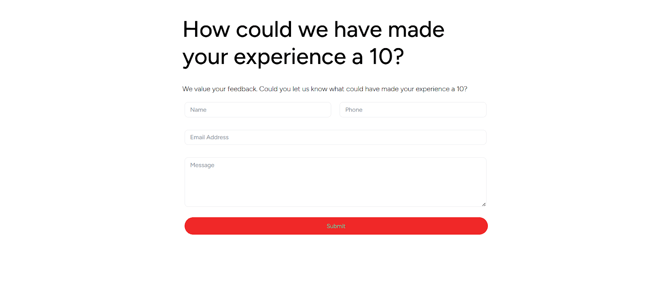
Feedback Form:
- From the top menu bar, hover over or click on “Marketing."
- In the dropdown menu, click on “Forms."
- The Growth99 "Review Form" is used as a feedback form.
- Click on the three dots on the right-hand side of the form to edit it.

Step 7: View Fetched Reviews
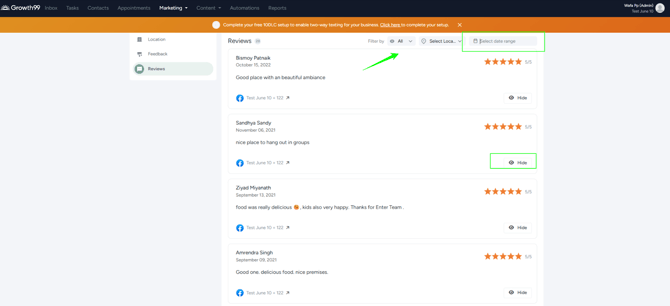
On the "Review Manager" page, click on "Reviews" to view all the fetched reviews.
- In "Reviews," filter out reviews by:
- All - Filter out review using the drop-down presets: All, Hide, Unhide.
- Select location - filter out reviews based on the location present in the business.
- Date Range Selector: Allows filtering reviews by specific dates.
For further assistance, contact support@growth99.com.