
The Gia Dashboard is your central hub for managing how Gia operates day-to-day. From here, you can toggle Gia on or off, reset your configuration, and use Test Mode to review responses before they reach patients.
You can also verify which communication channels Gia is actively connected to — ensuring everything is set up and running as expected.
- Disable/Enable: This feature allows control over whether GIA responses are active or inactive.
- When Disable is selected, GIA stops sending responses to end users.
- When Enable is selected, GIA resumes sending responses.
- This option is useful when responses need to be temporarily paused.
- Reset Configuration: This feature deactivates and clears the existing GIA setup, allowing you to reconfigure the system from scratch.
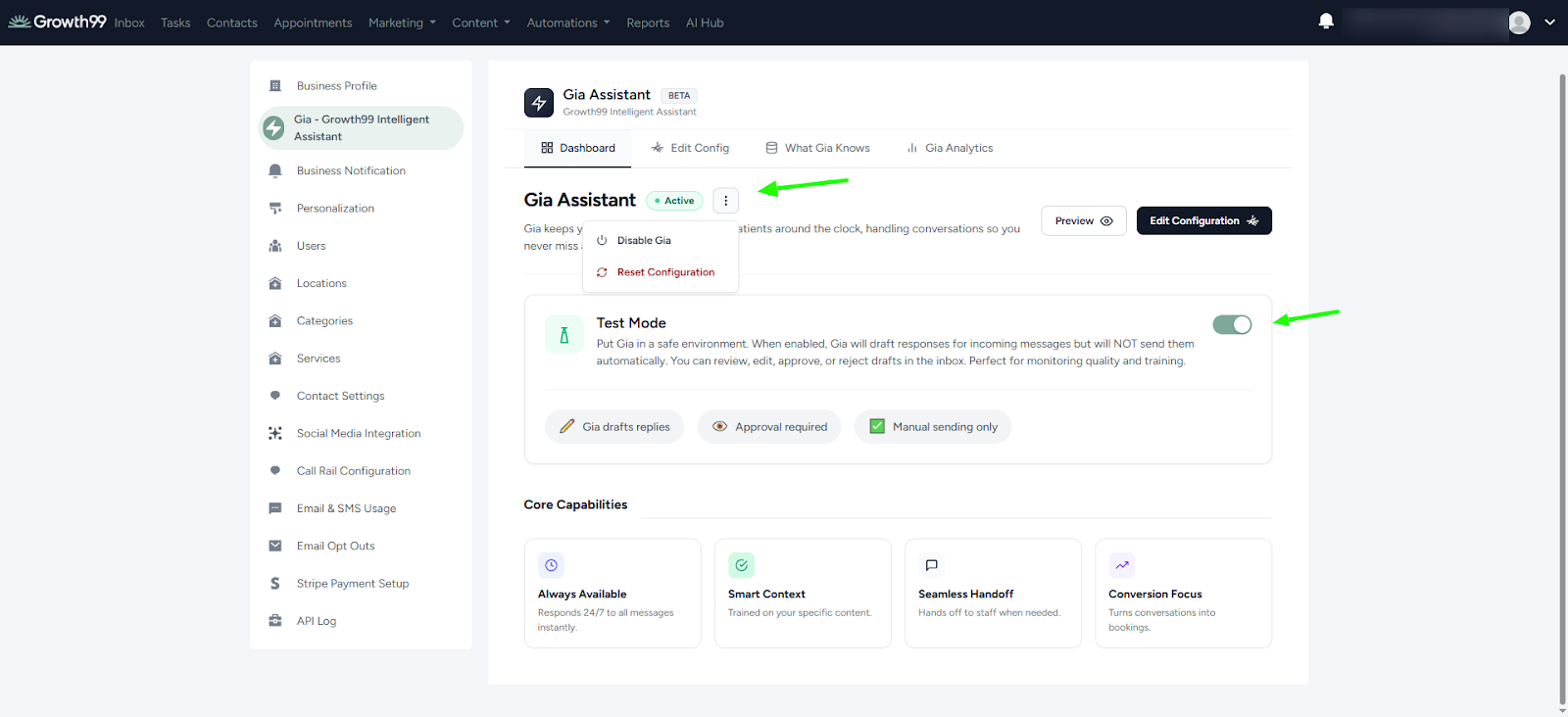
- Test Mode: Enables manual oversight of GIA-generated content. Use this mode to verify response precision and enforce quality standards before deployment.
- When Test Mode is enabled, GIA responses are saved as drafts in the inbox. These drafts can be reviewed, and the following actions can be performed:
- Approve and send the response.
- Edit and send the response.
- Reject the response
- When Test Mode is disabled, GIA responses are automatically sent directly to the end user without manual review.
- This feature helps ensure confidence in GIA responses before enabling fully automated communication.
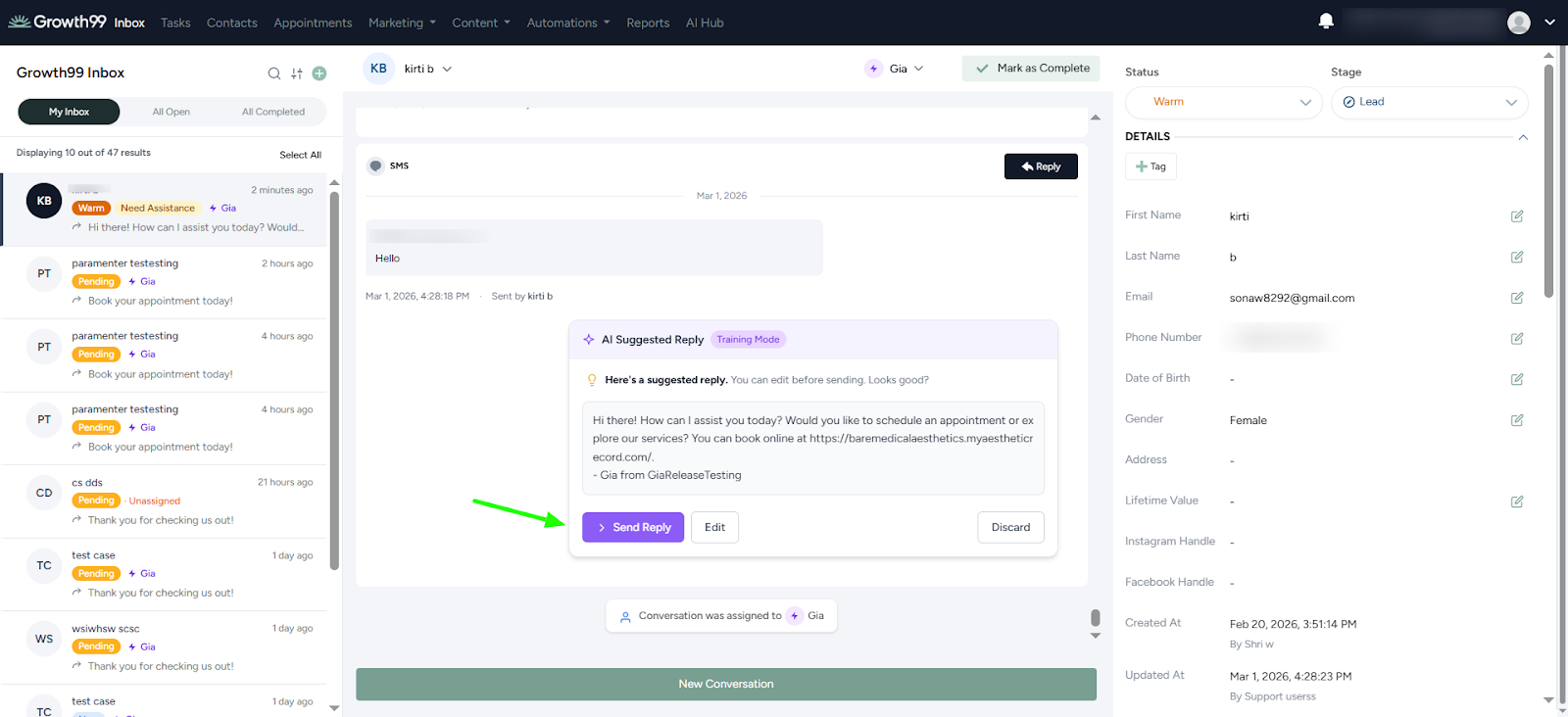
- When Test Mode is enabled, GIA responses are saved as drafts in the inbox. These drafts can be reviewed, and the following actions can be performed: