Before you start, make sure you have:
- Admin access to your Growth99+ account
- Salesforce System Administrator access (needed to create External Client Apps and modify System Permissions)
- Your Salesforce My Domain URL (we'll copy it in Step 5)
Step 1: Access the Salesforce Integration in Growth99+
- Log in to Growth99+ using your credentials at app.growth99.com.
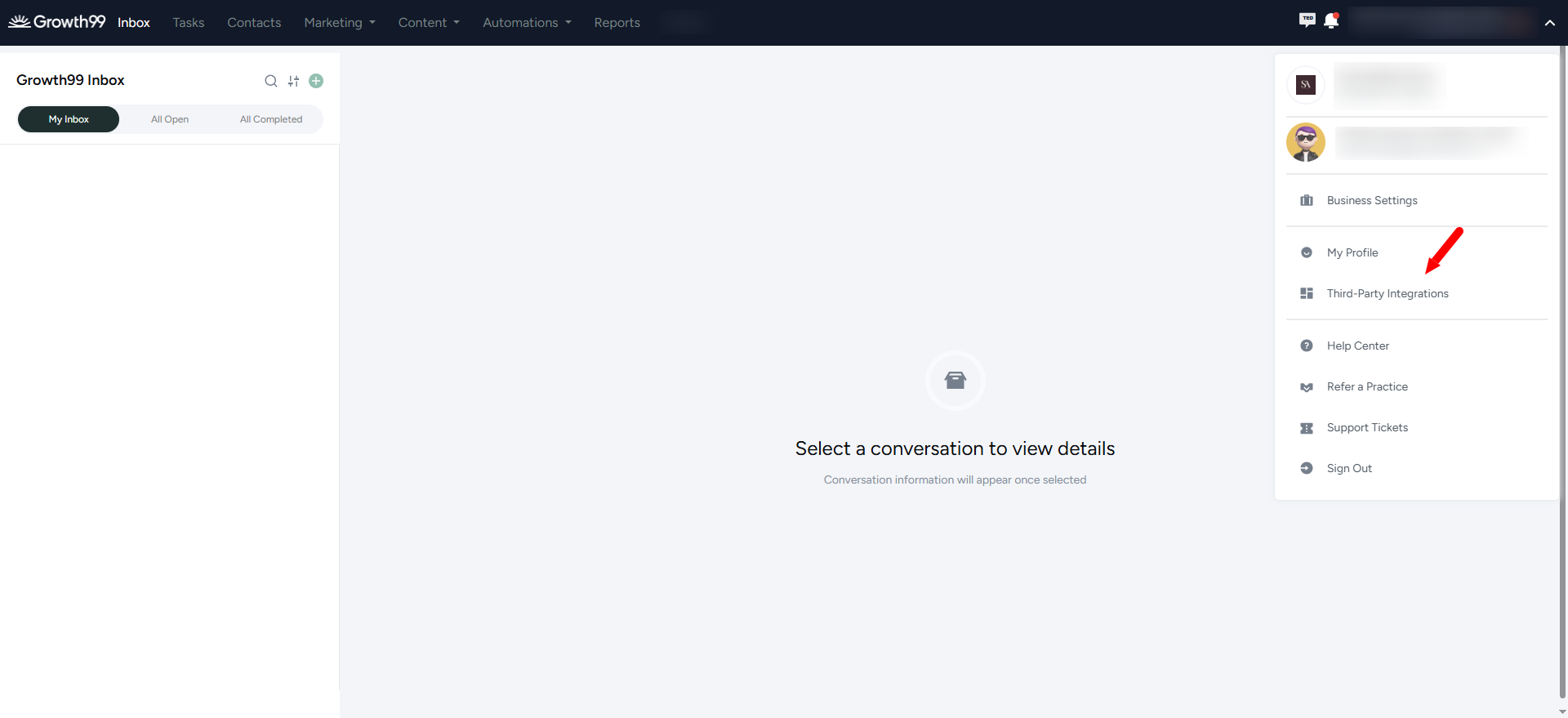
- Navigate to your profile to access integration settings.
- Click on Third-Party Integrations.
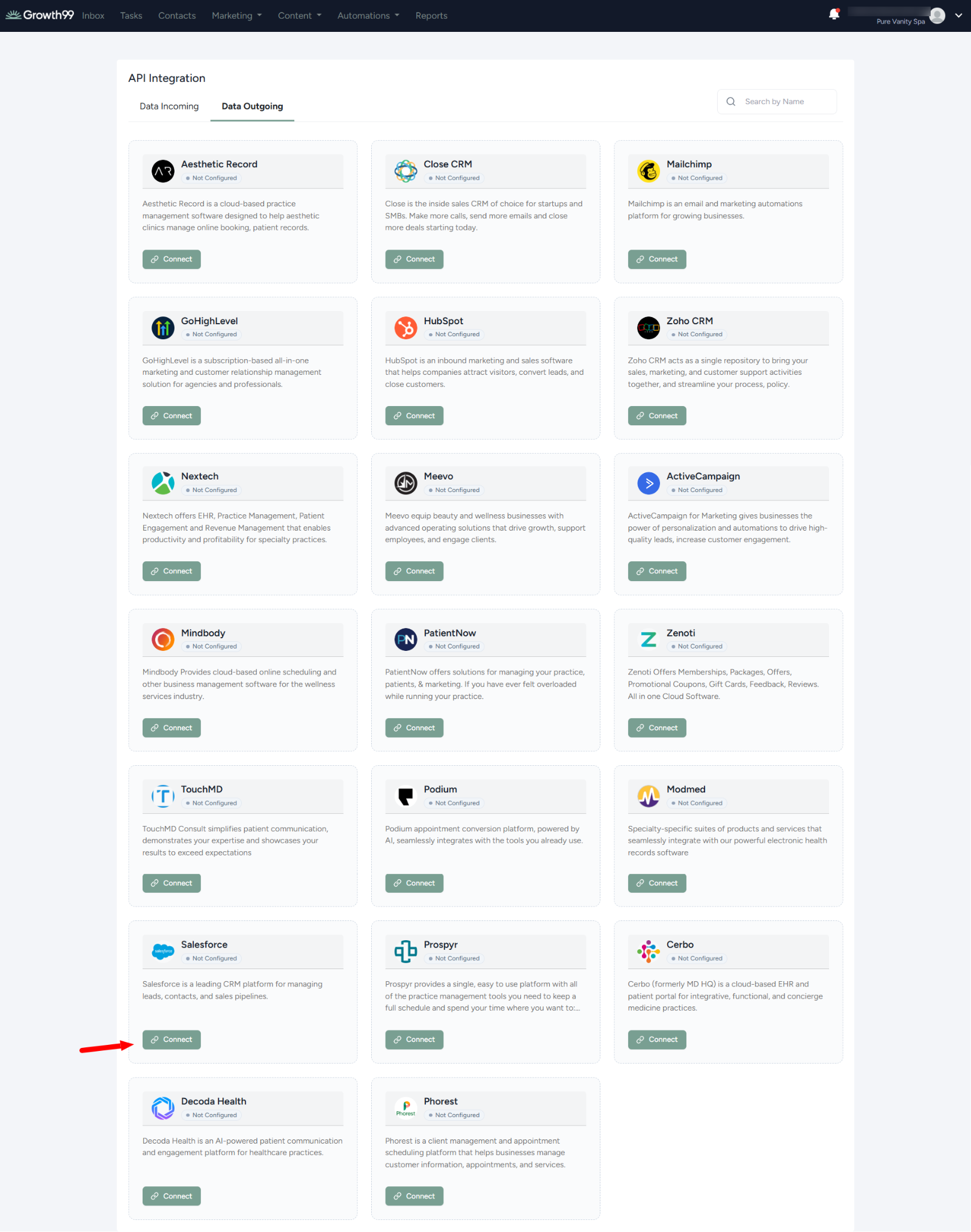
- Under API Integration, select the Data Outgoing tab, locate Salesforce, and click Connect.
Step 2: Set Up Outgoing Data Integration with Salesforce
This setup allows contacts and messages to flow from Growth99+ to Salesforce.
- On the Data Outgoing tab, click Connect for Salesforce.
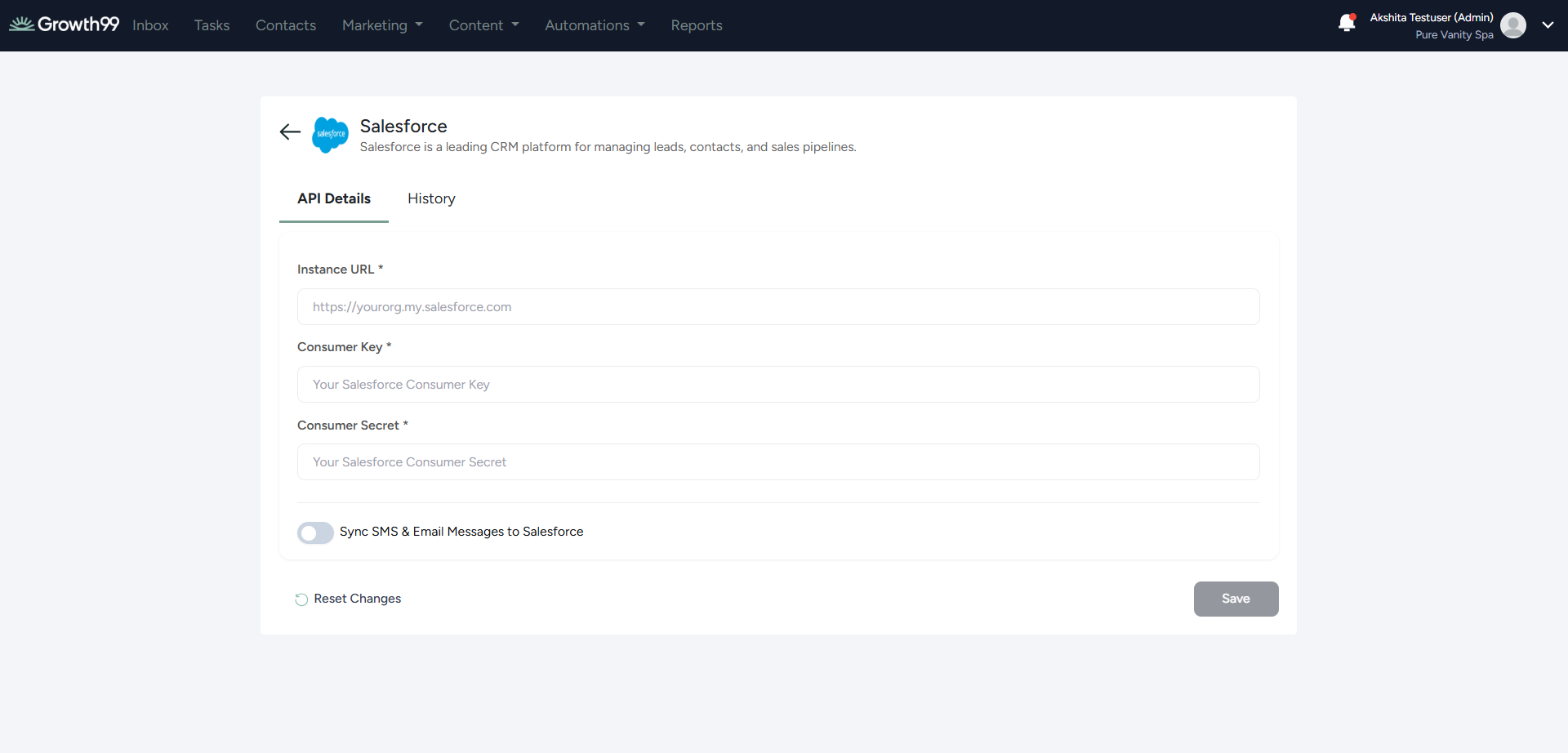
- In a separate browser window or tab, log in to your Salesforce account at welcome.salesforce.com.
- Access the App Manager to generate the Consumer Key and Consumer Secret:
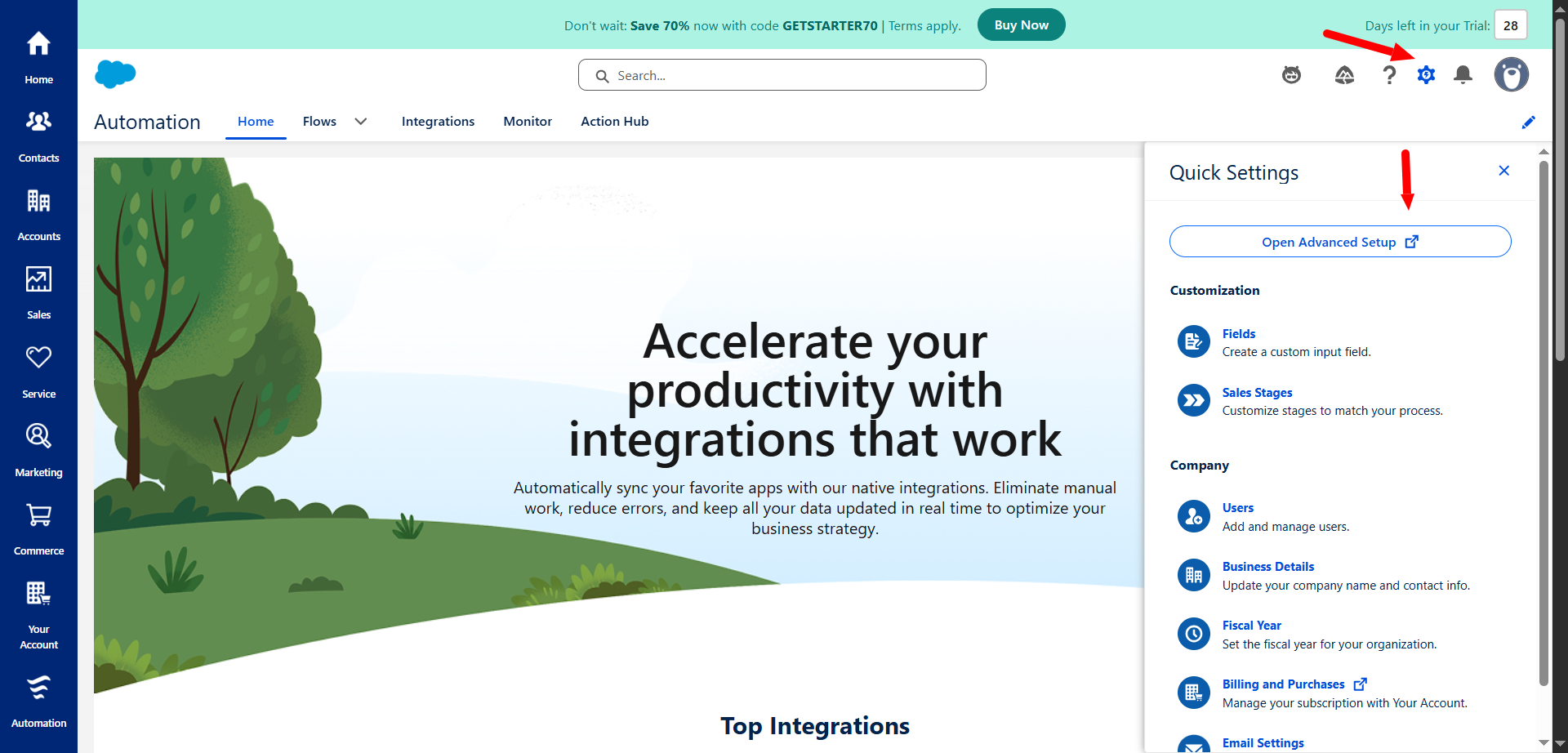
- Click the gear icon (⚙️) in the top-right corner and select Setup.
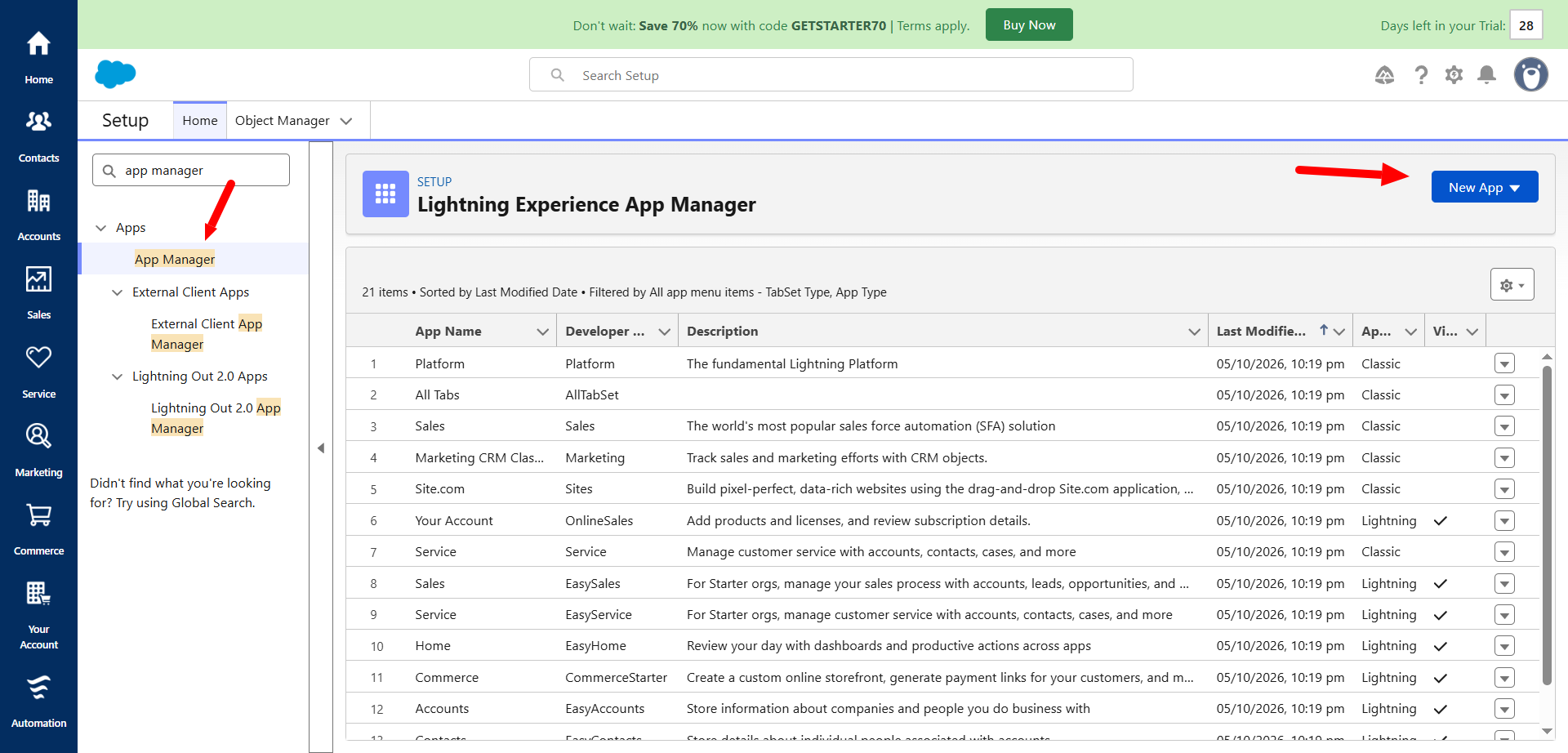
- In the Quick Find search box on the left, type "App Manager".
- Click App Manager under the Apps section.
- In the App Manager, click New External Client App.
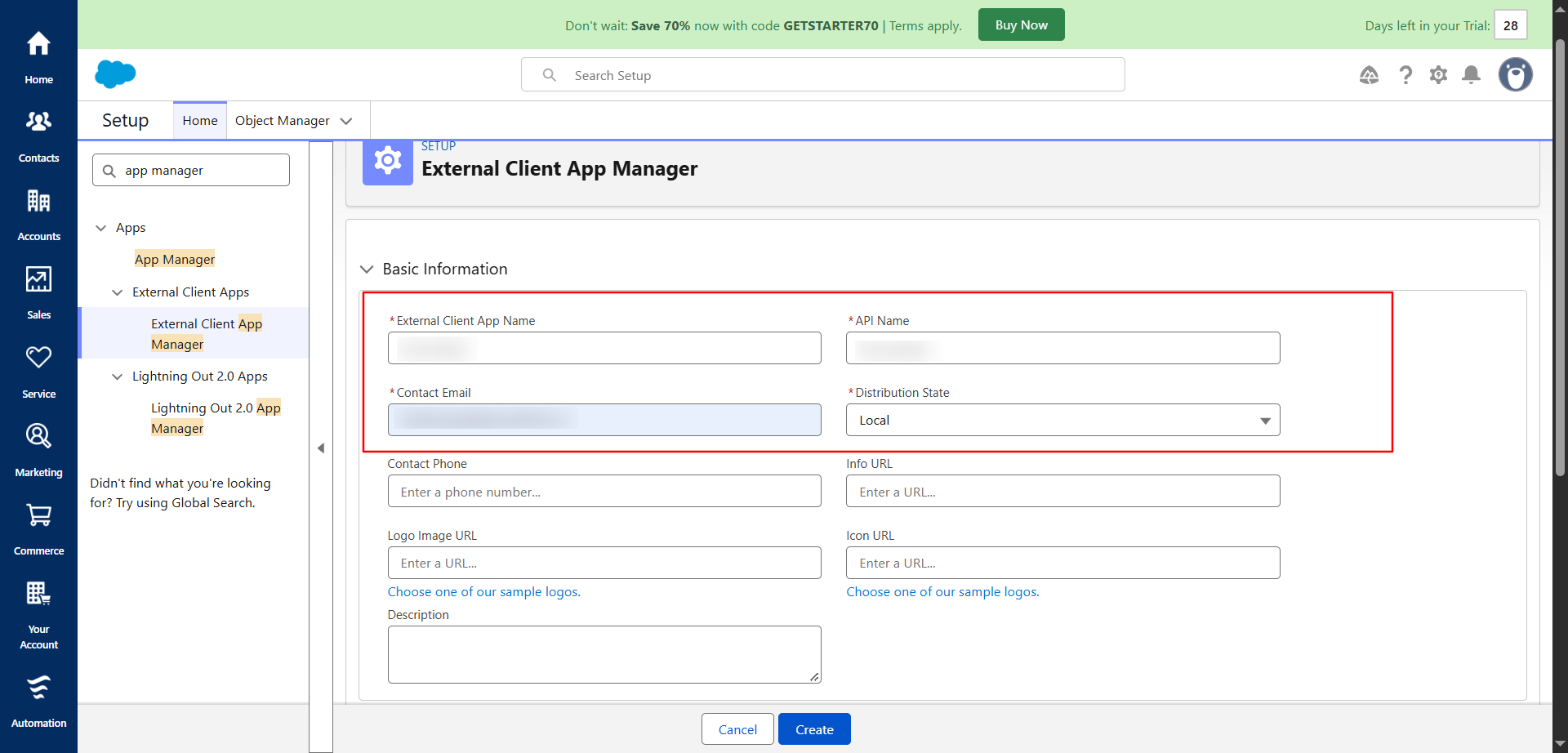
- Fill in the required application details:
- Basic Details: Provide External Client App Name and API Name (e.g., Growth99 Contact), Contact Email, and set Distribution State to "Packaged".
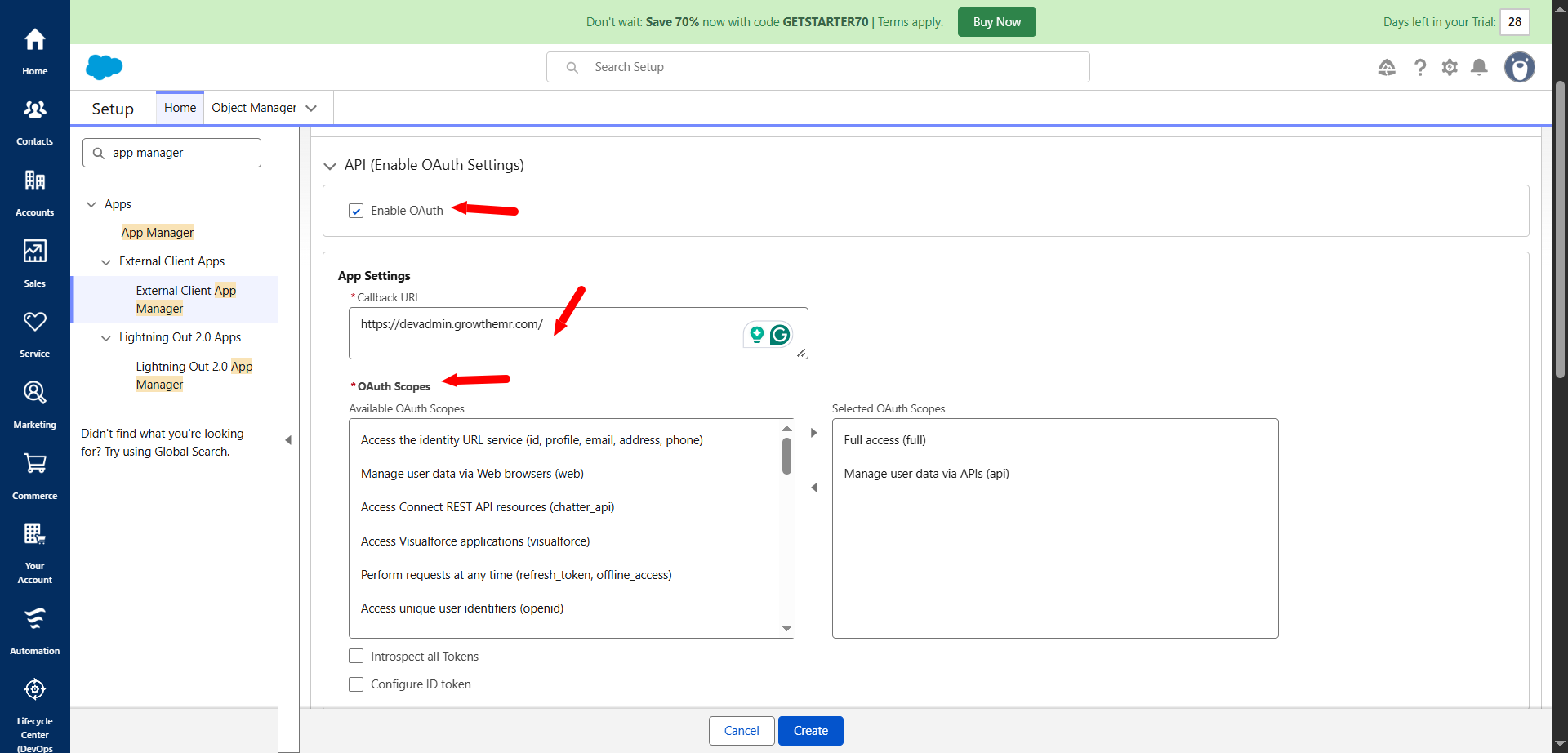
- API (Enable OAuth Settings): Check Enable OAuth, enter Callback URL (https://app.growth99.com/), and add OAuth Scopes (Manage user data via APIs (api) and Full access (full)).
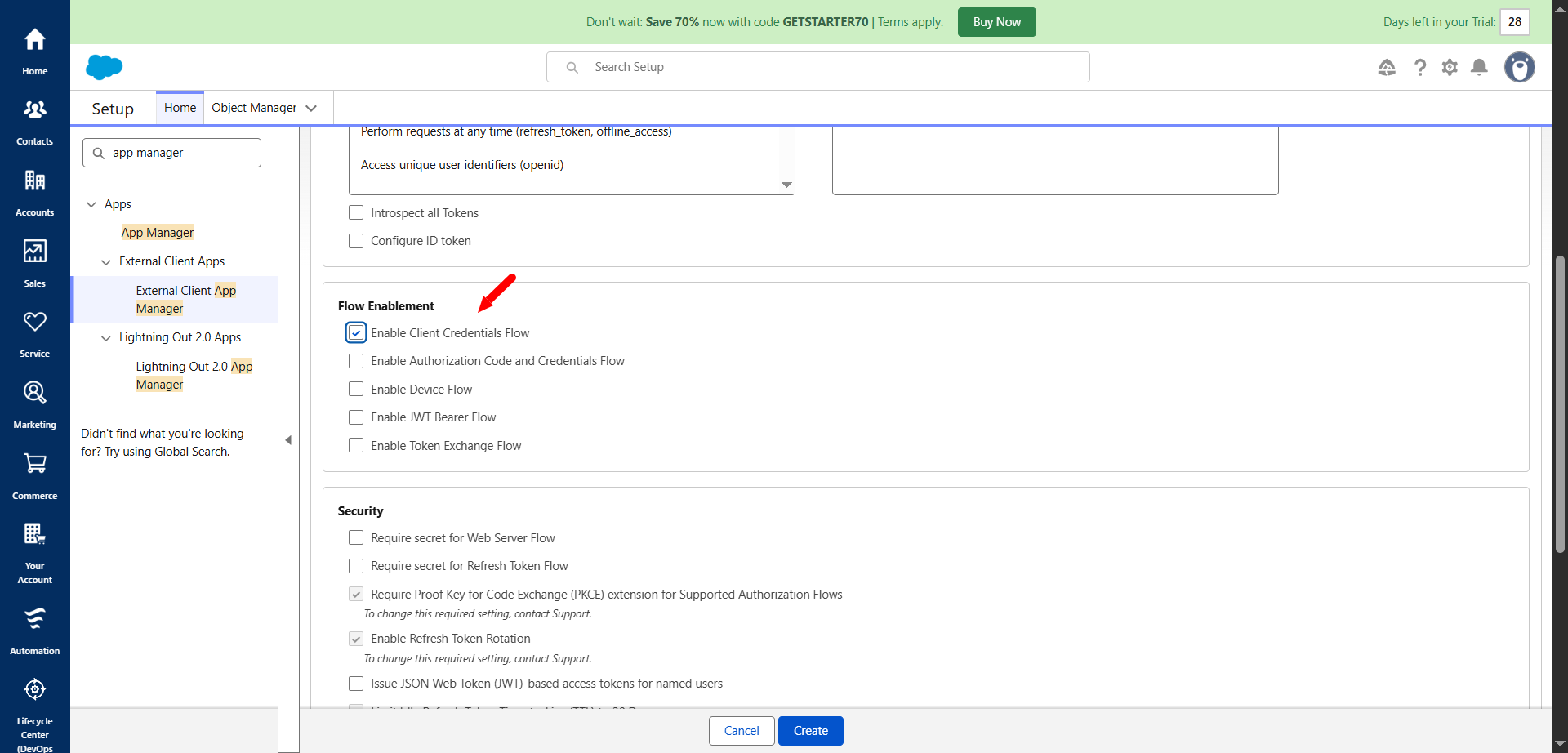
- Flow Enablement: Check Enable client credentials flow and click Save.
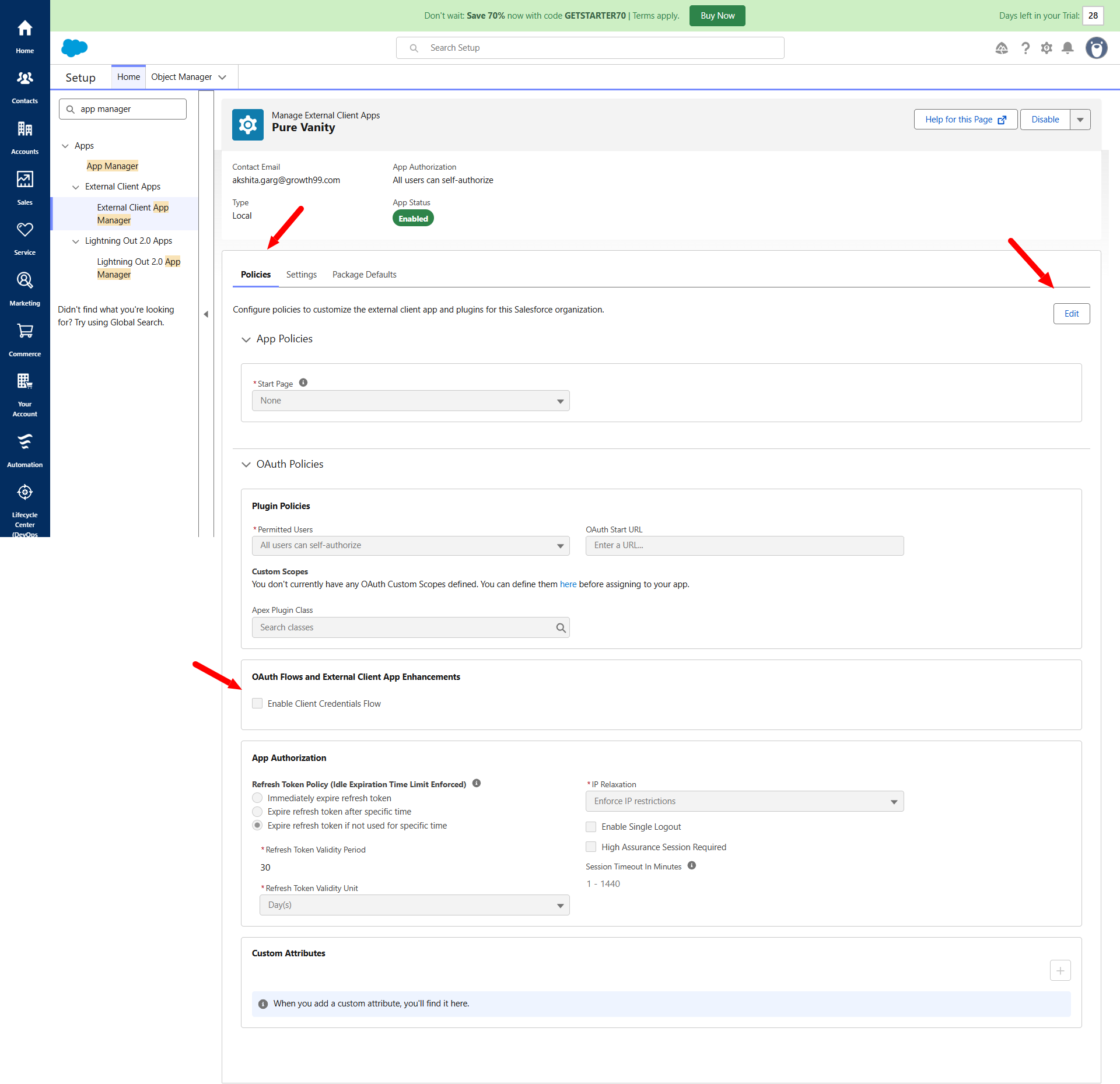
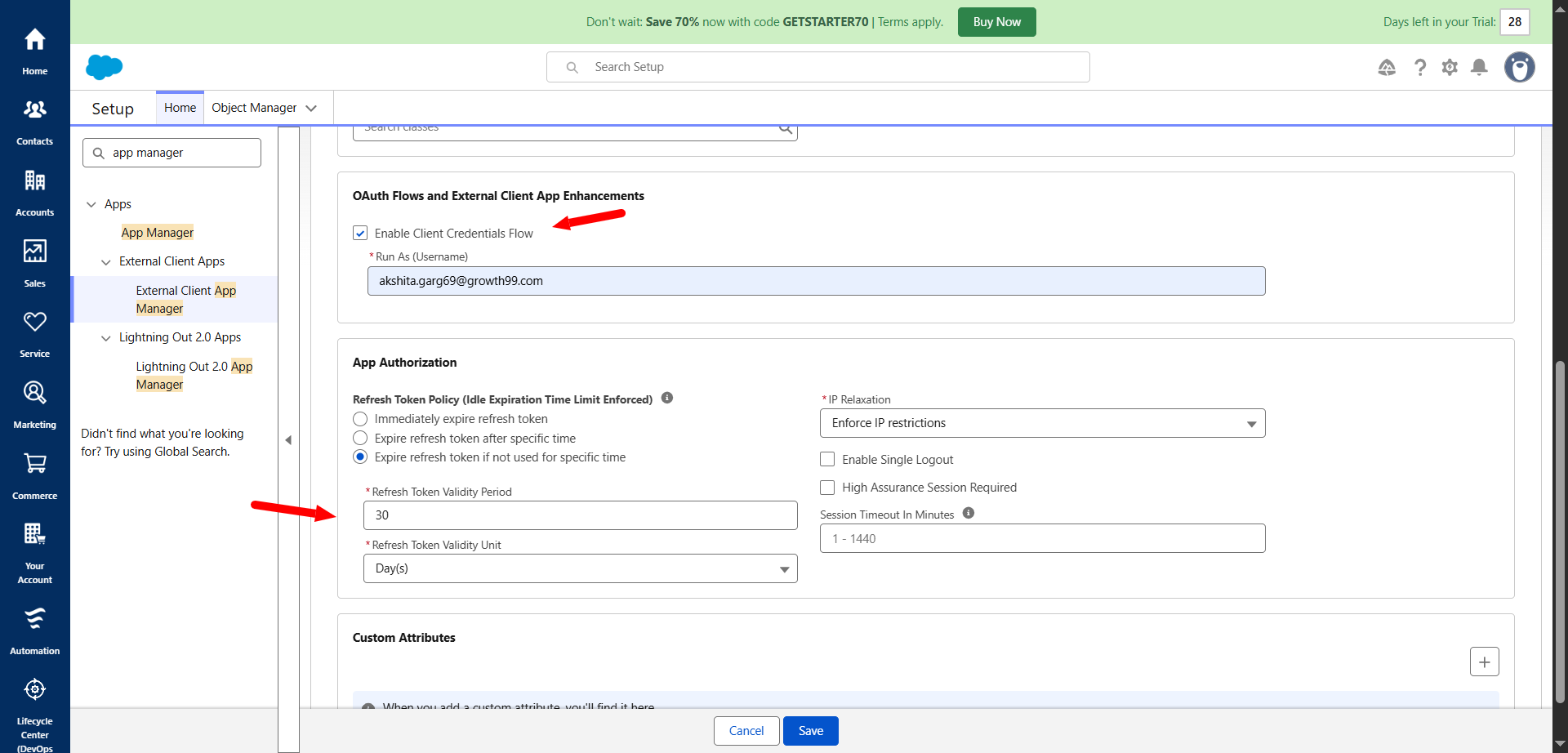
- After saving, you will be redirected to the Policy page. Click Edit to enable Client Credentials Flow and App Authorization.
- In App Manager, open External Client App Manager, locate your newly created app, and click Edit Settings.
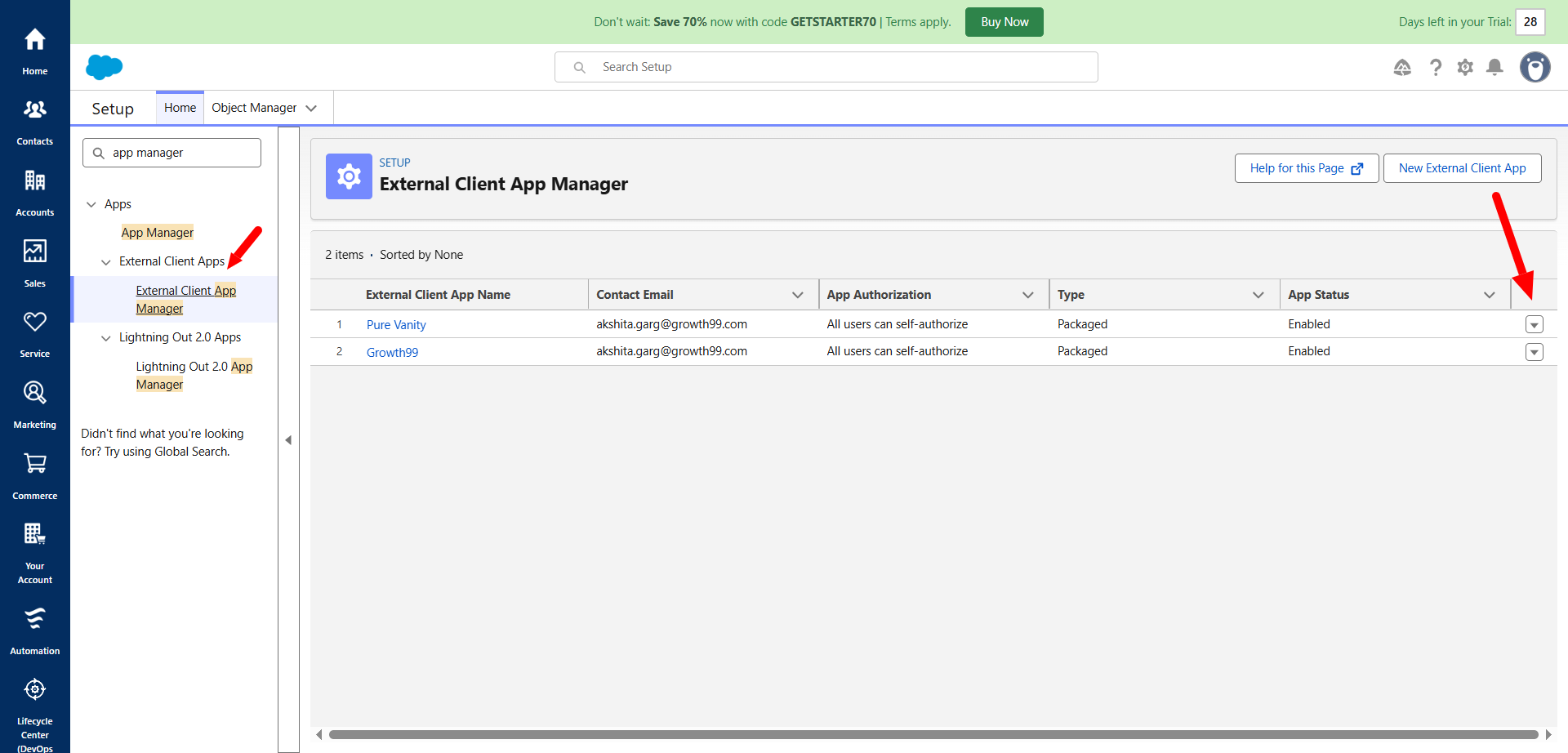
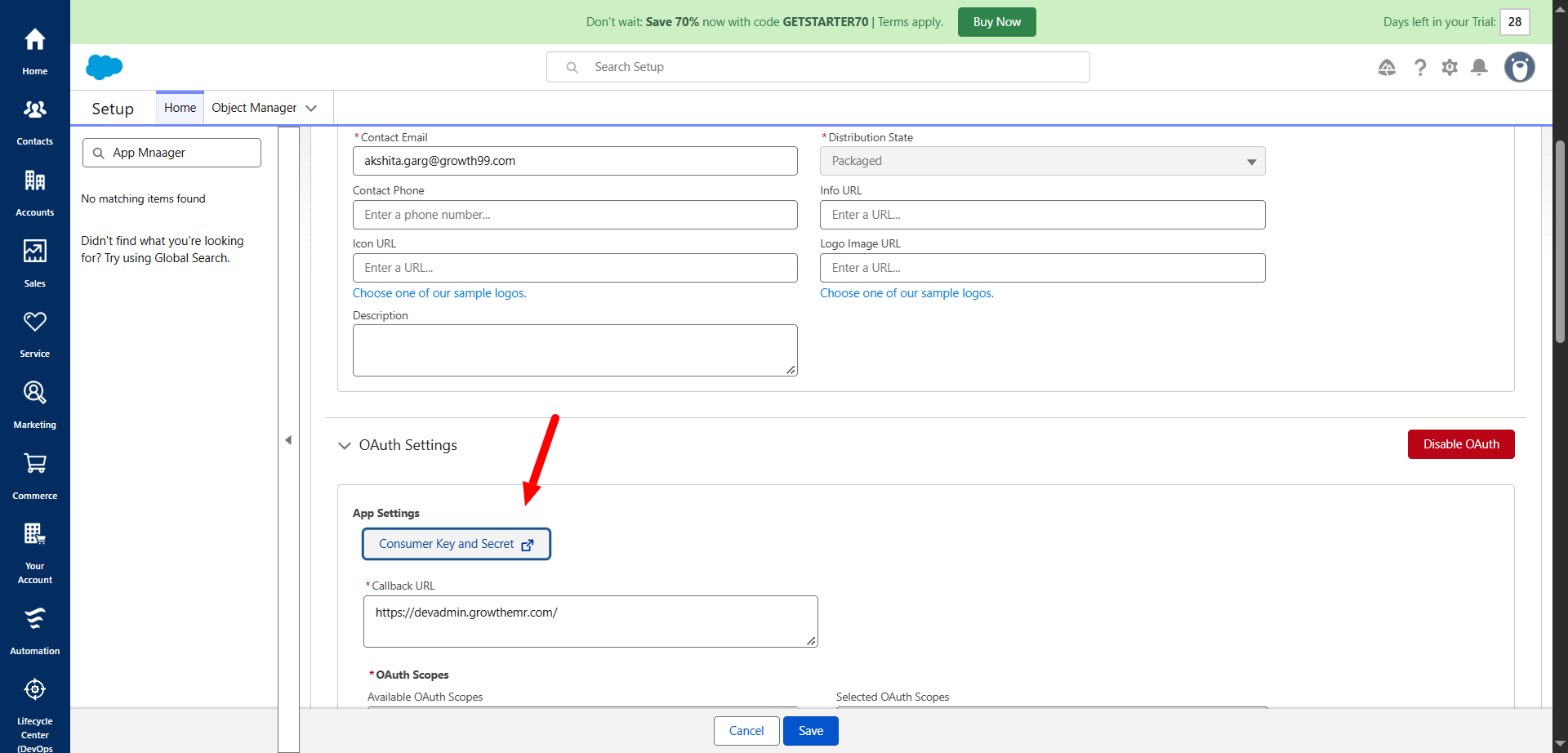
- Scroll down to the OAuth section and click Consumer Key and Secret.
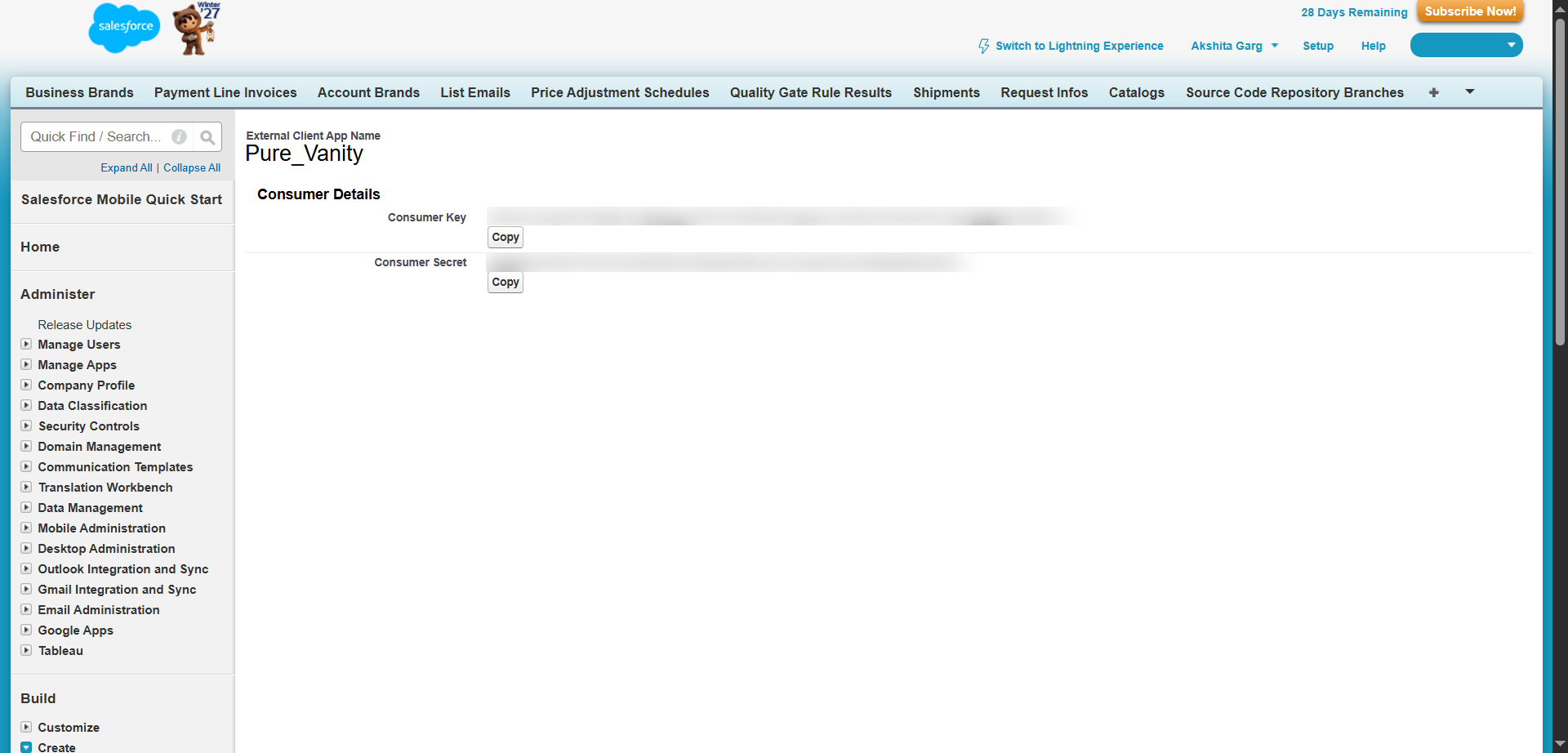
- Re-authenticate if prompted. Copy both the Consumer Key and Consumer Secret and store them securely.
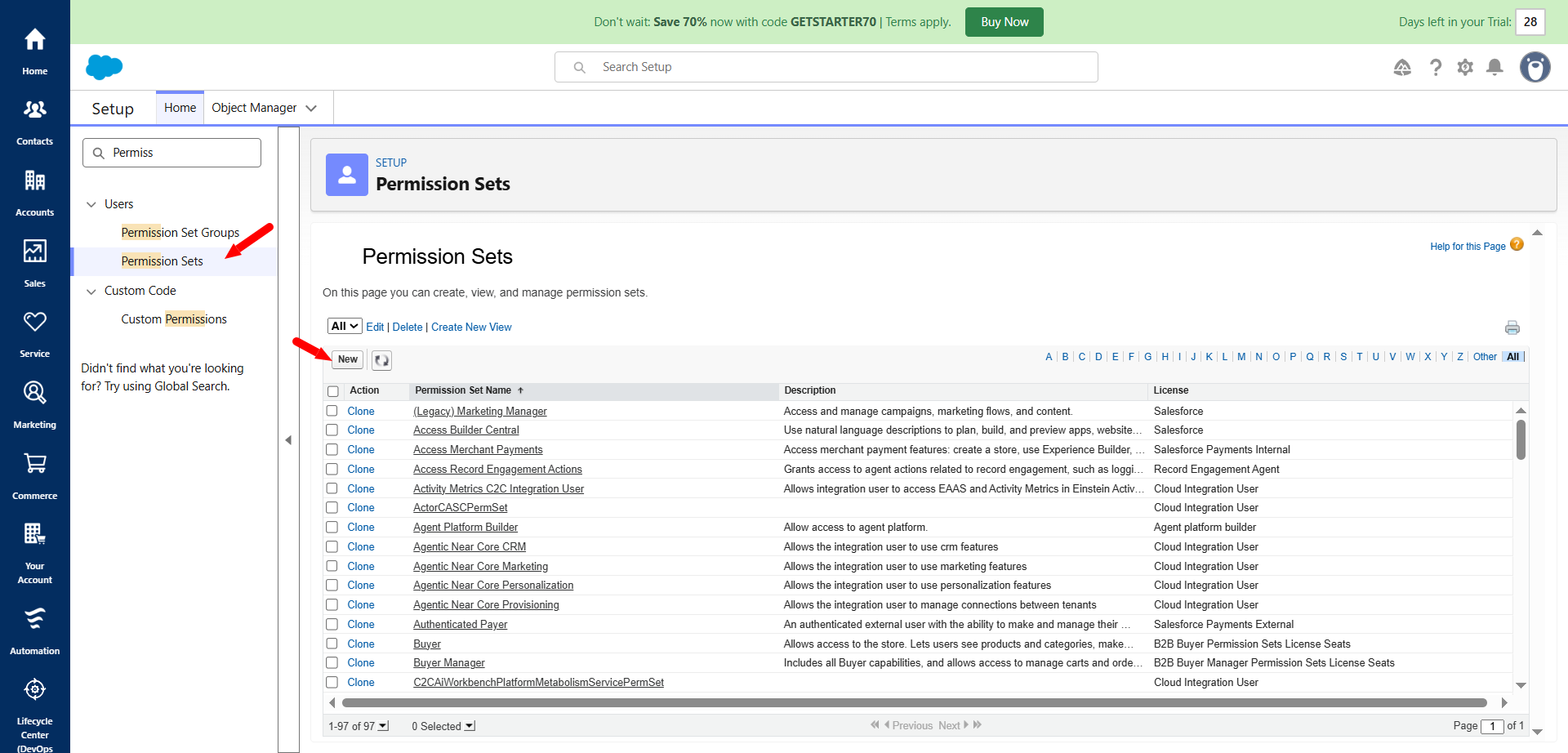
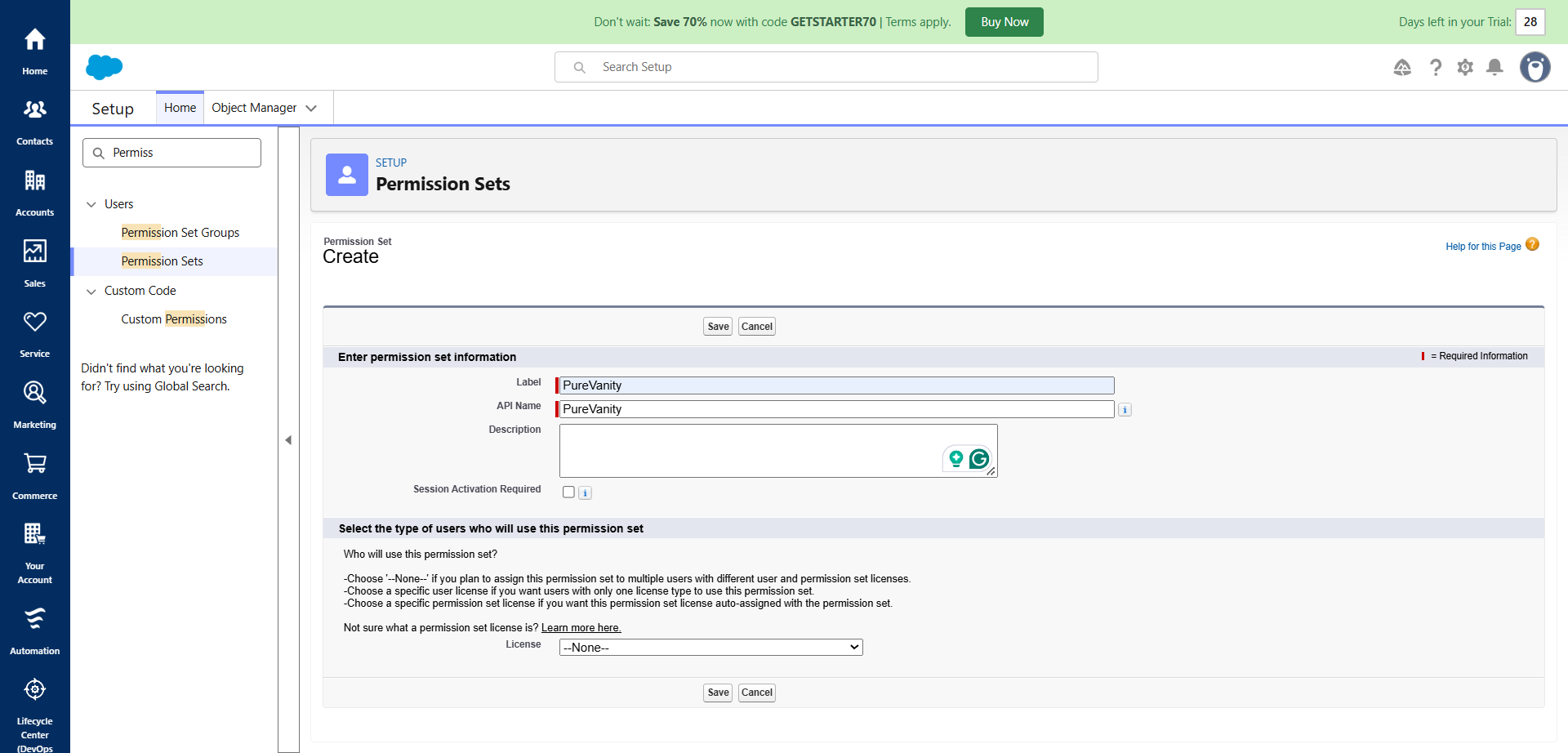
- Create a new Permission Set in Salesforce by clicking New under Permission Sets.
- Enter a Label for the permission set and click Save.
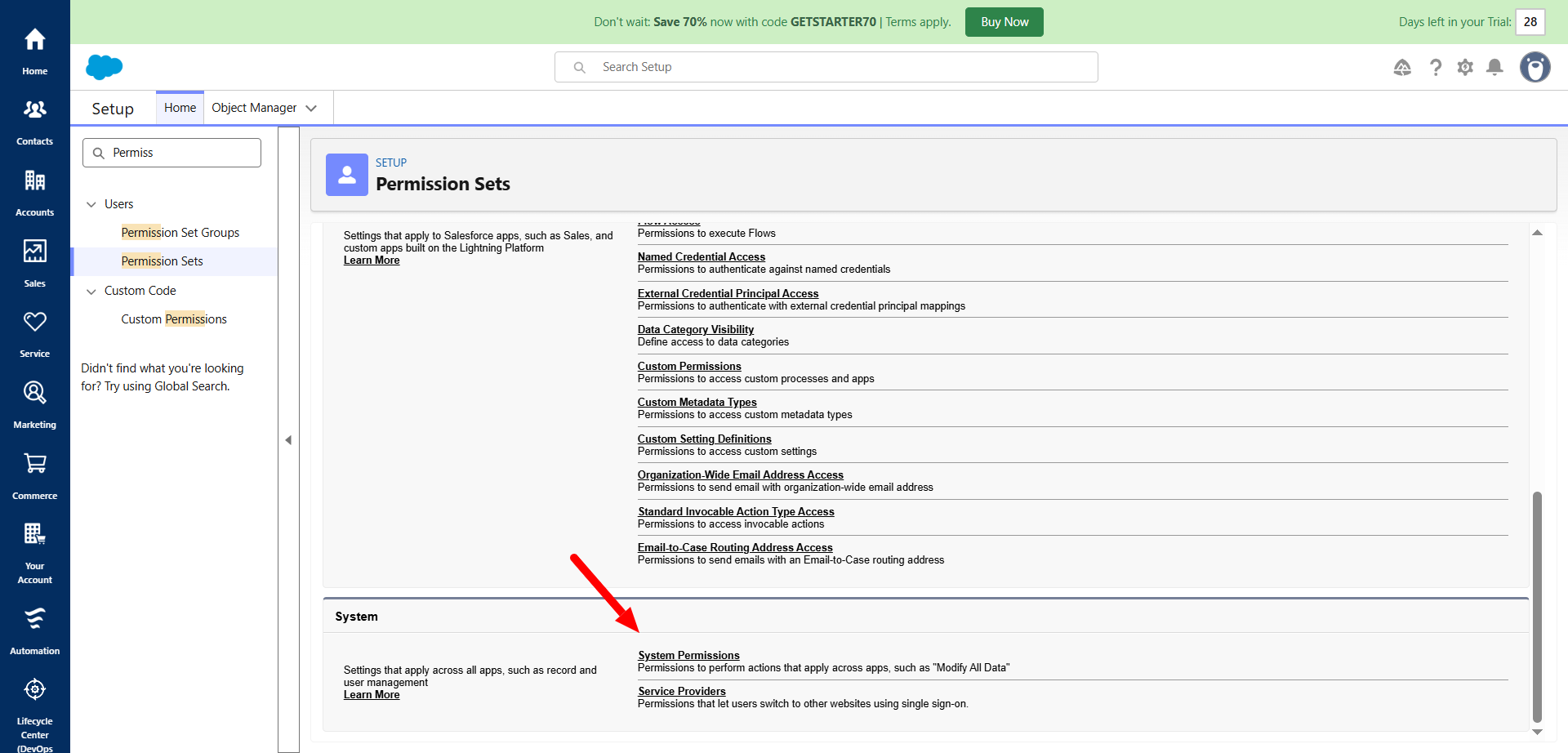
- On the next screen, click System Permissions.
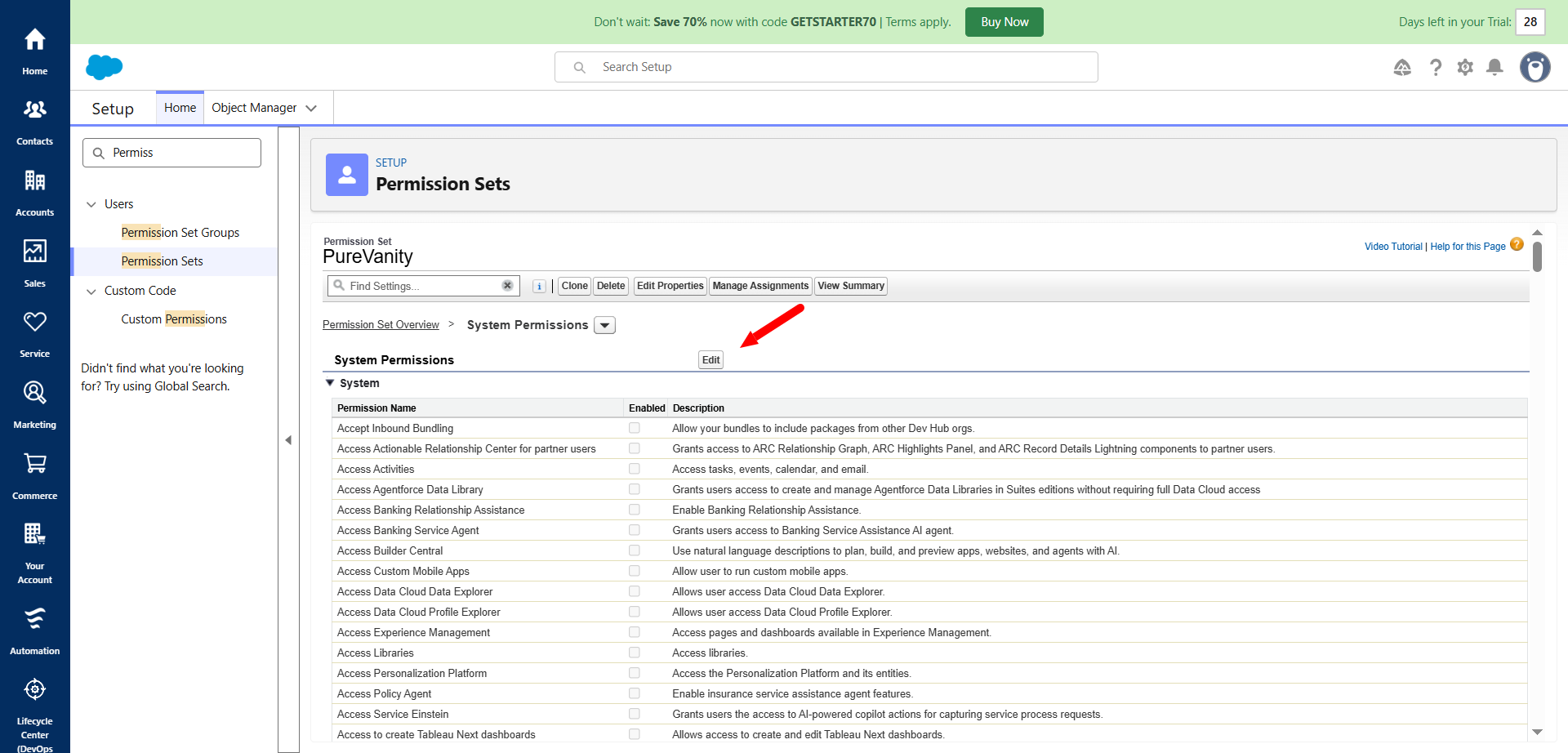
- Click Edit to modify the system permissions.
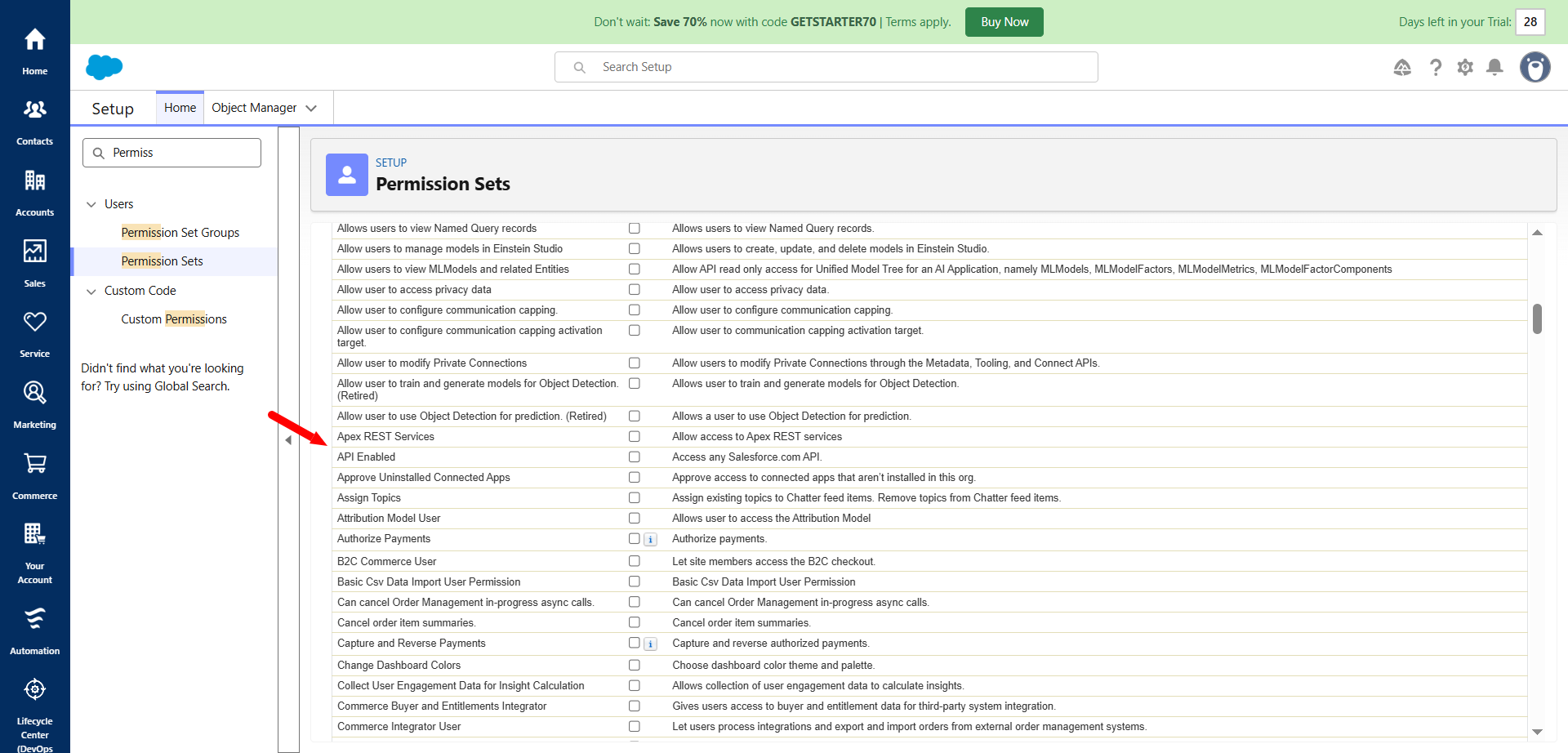
- Enable the API Enabled option and click Save.
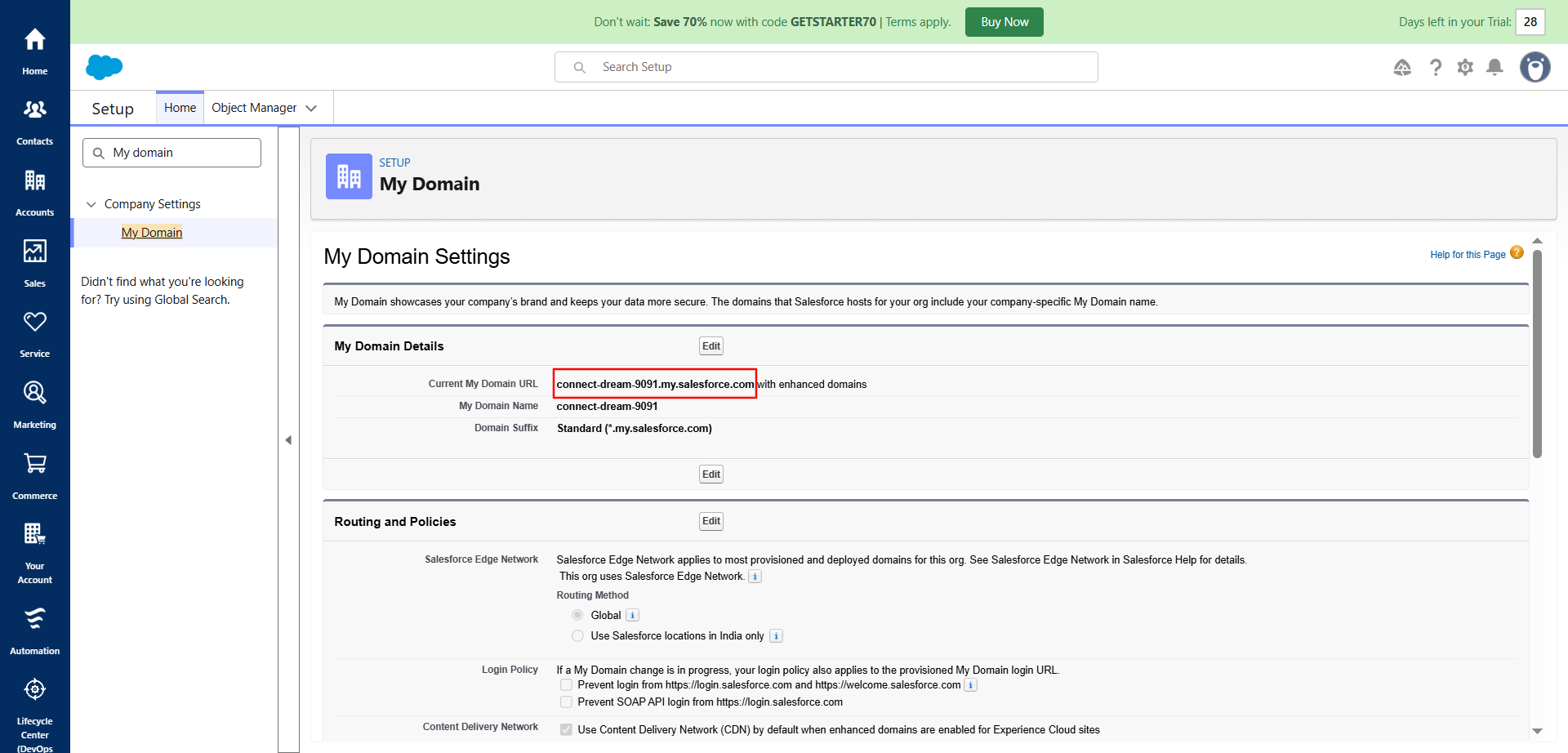
- Navigate to My Domain in Salesforce and copy your Domain URL.
Step 3: Complete Integration & View History
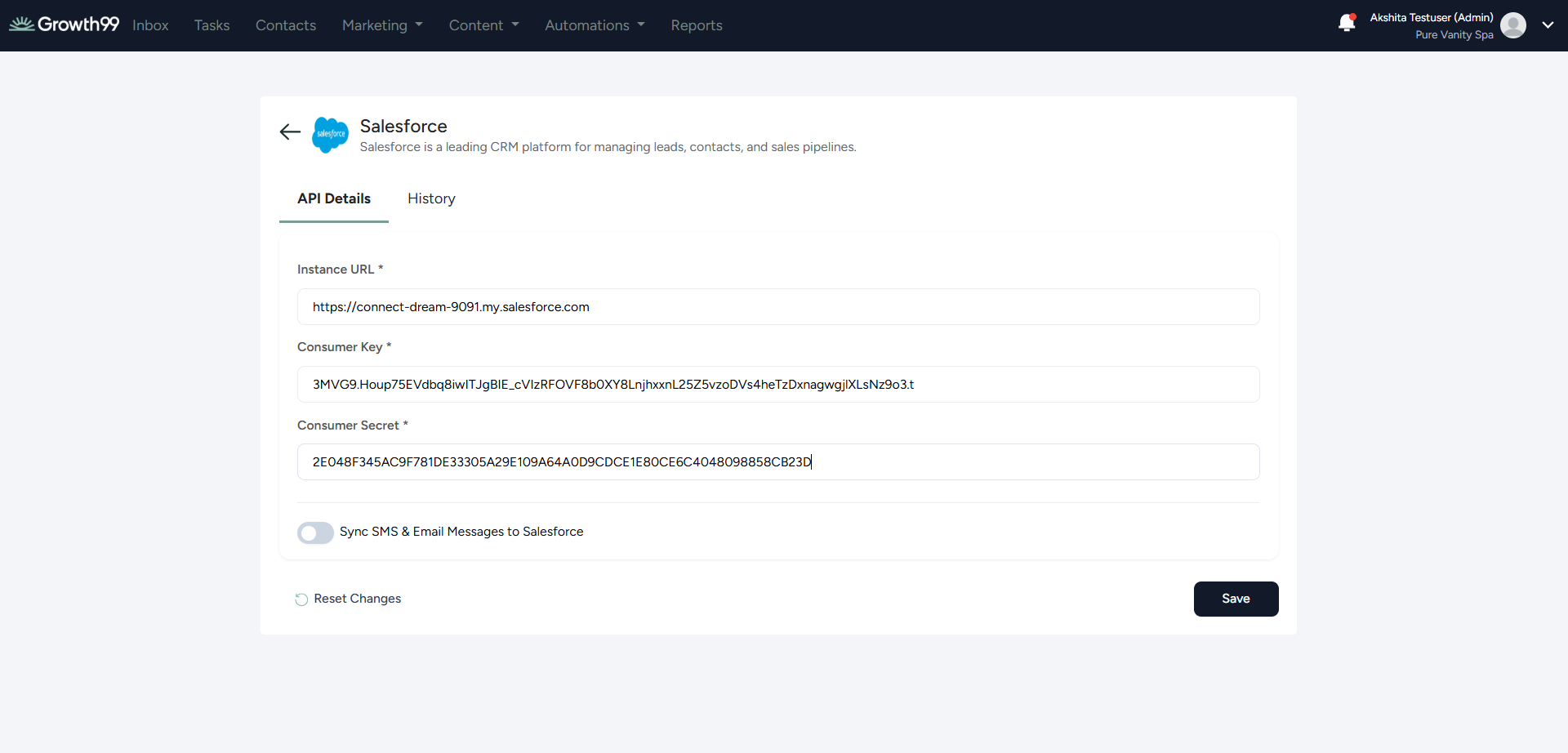
- Return to Growth99+, enter the copied credentials (Instance URL, Consumer Key, and Consumer Secret), and click Save.
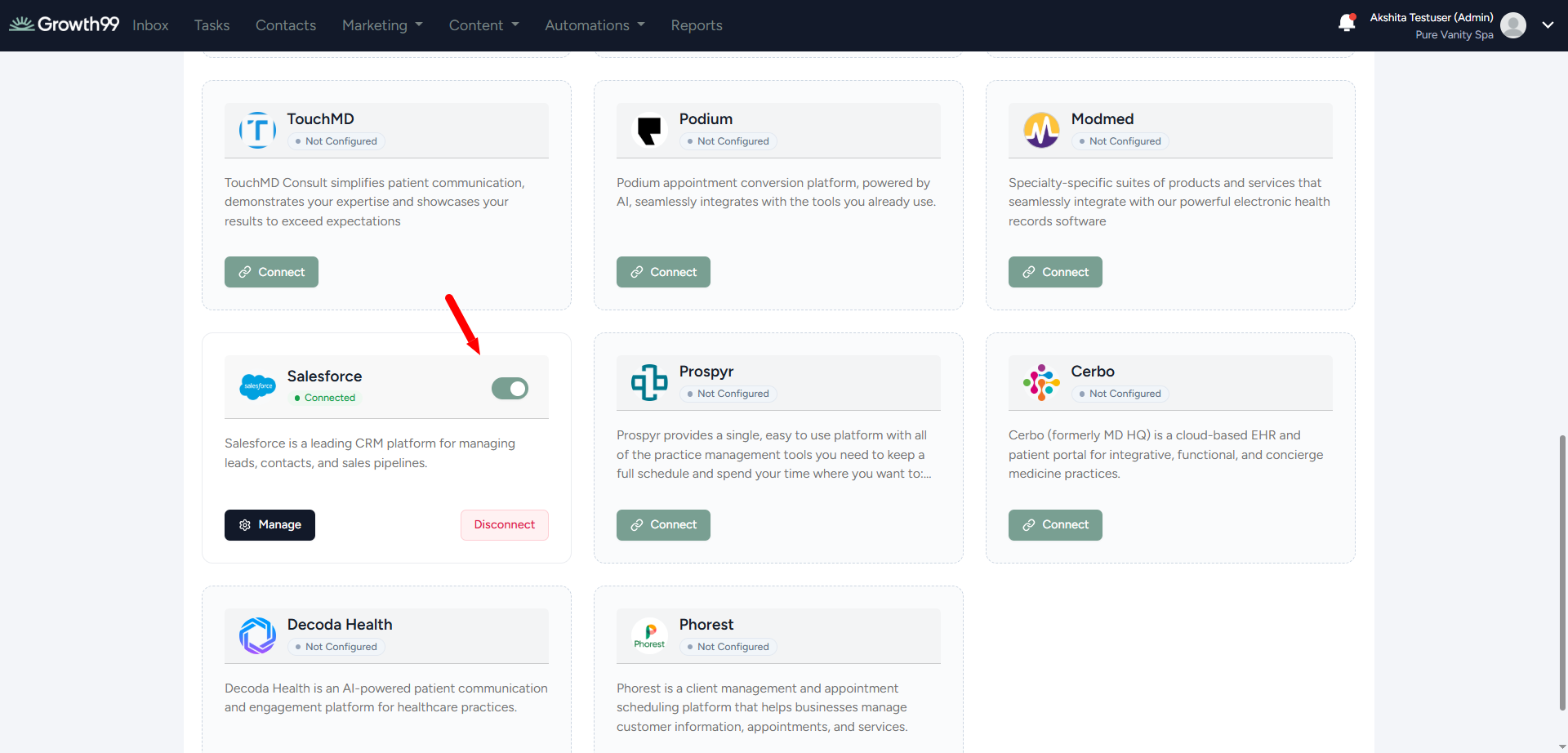
- Once connected, you can manage, disable, or disconnect the integration.
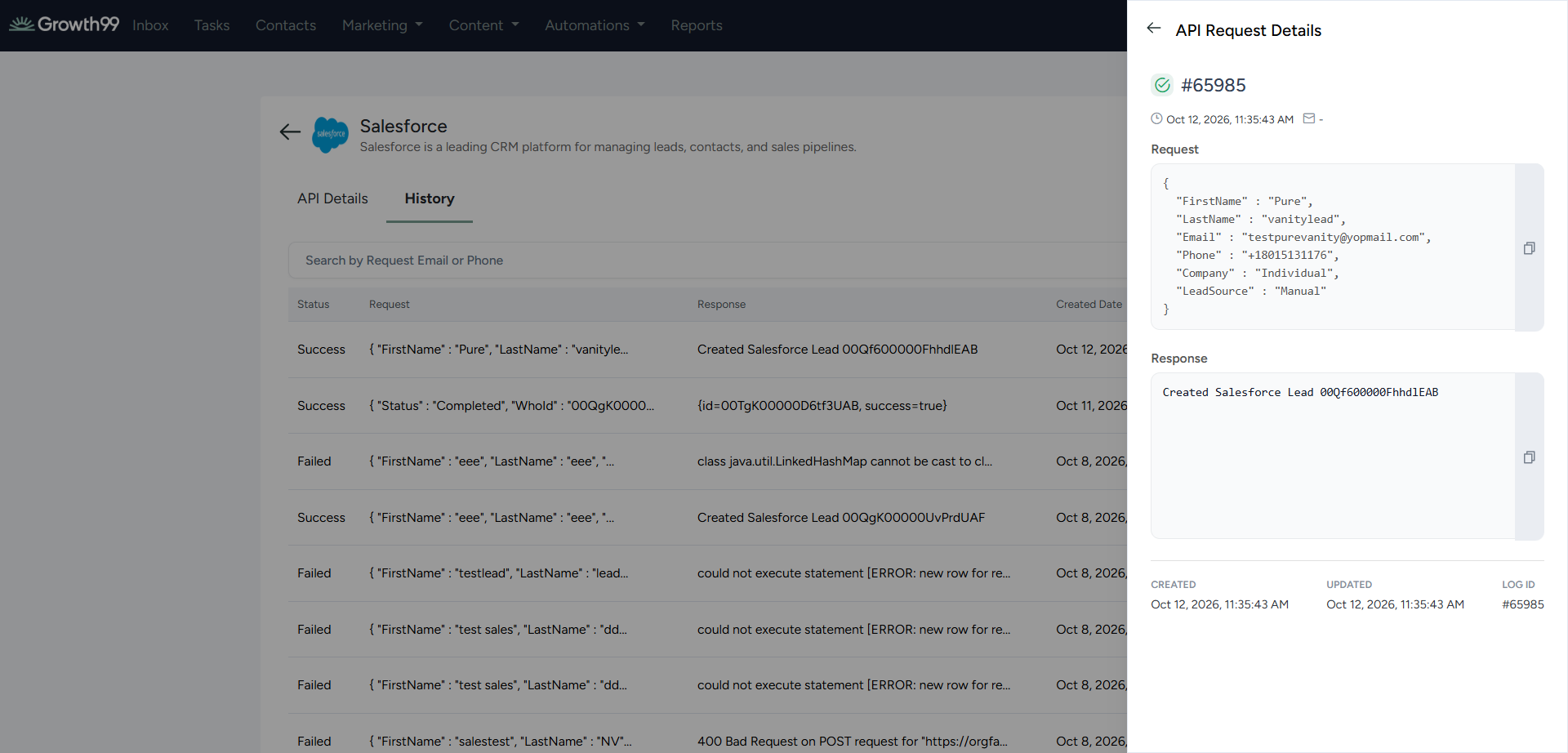
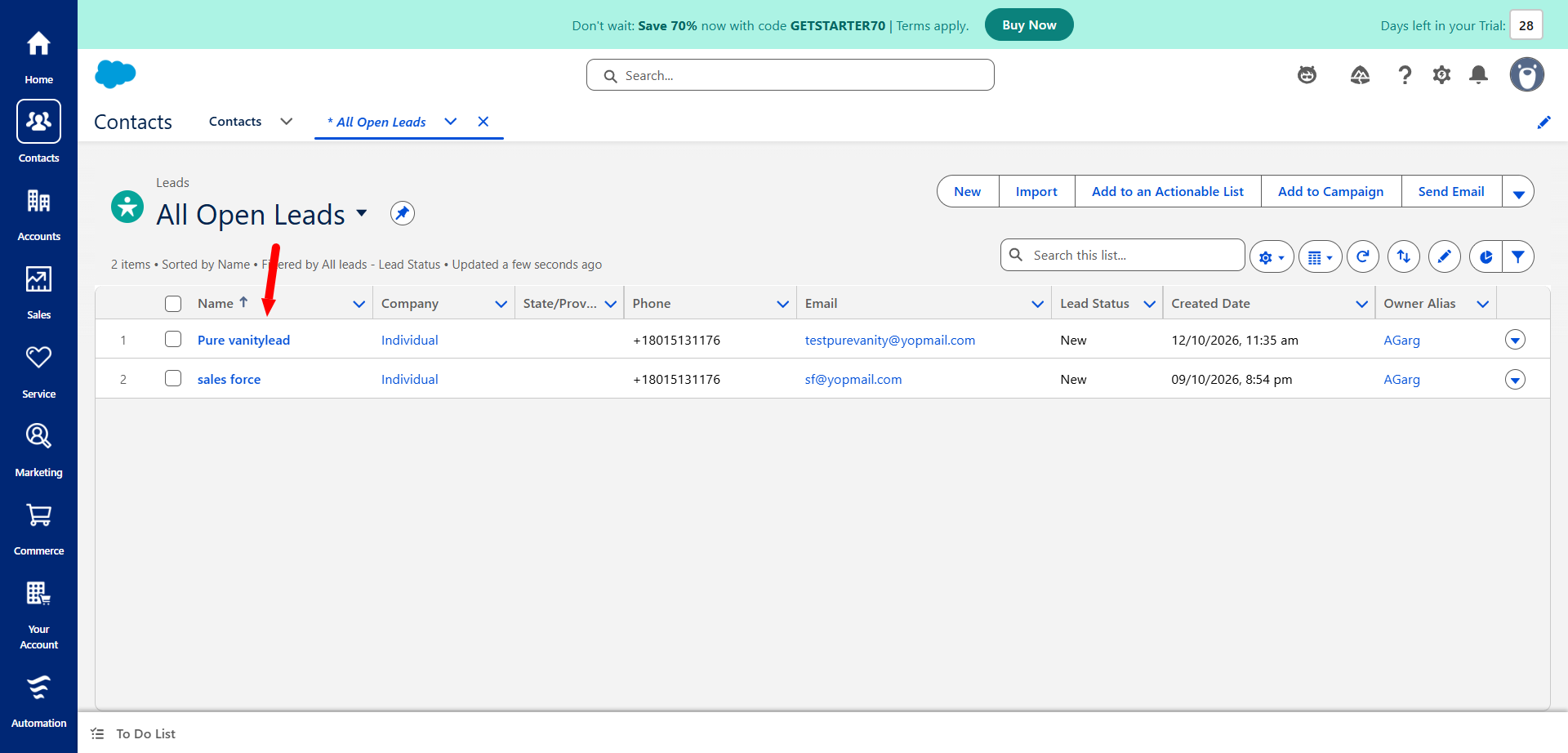
- Check the history log anytime to track outgoing data synced between Growth99+ and Salesforce.