
Before you start, make sure you have:
- Admin access to your Growth99+ account
- Admin access to your Podium account
- Log in to Growth99+ at app.growth99.com.
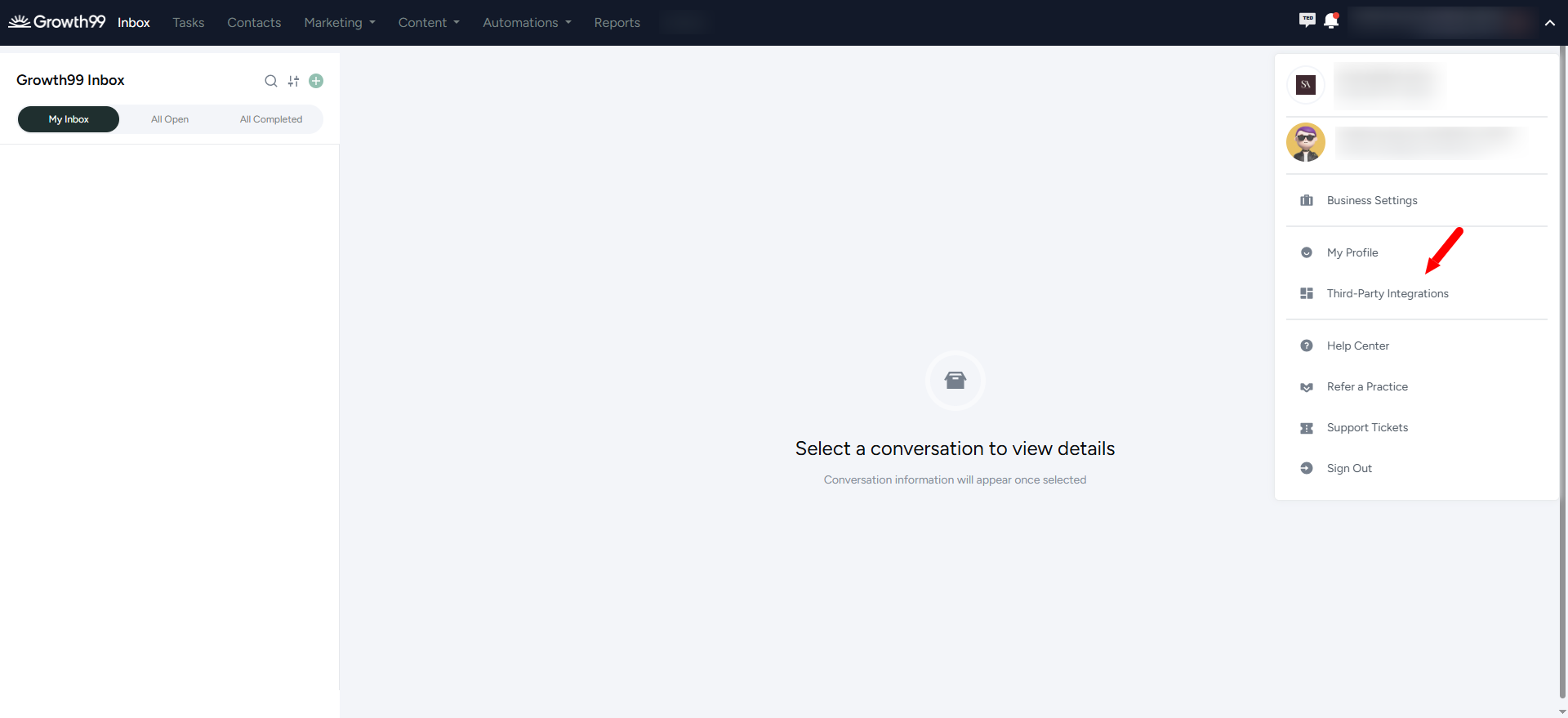
- Navigate to your profile to access the integration settings.
- Click Third-Party Integrations.
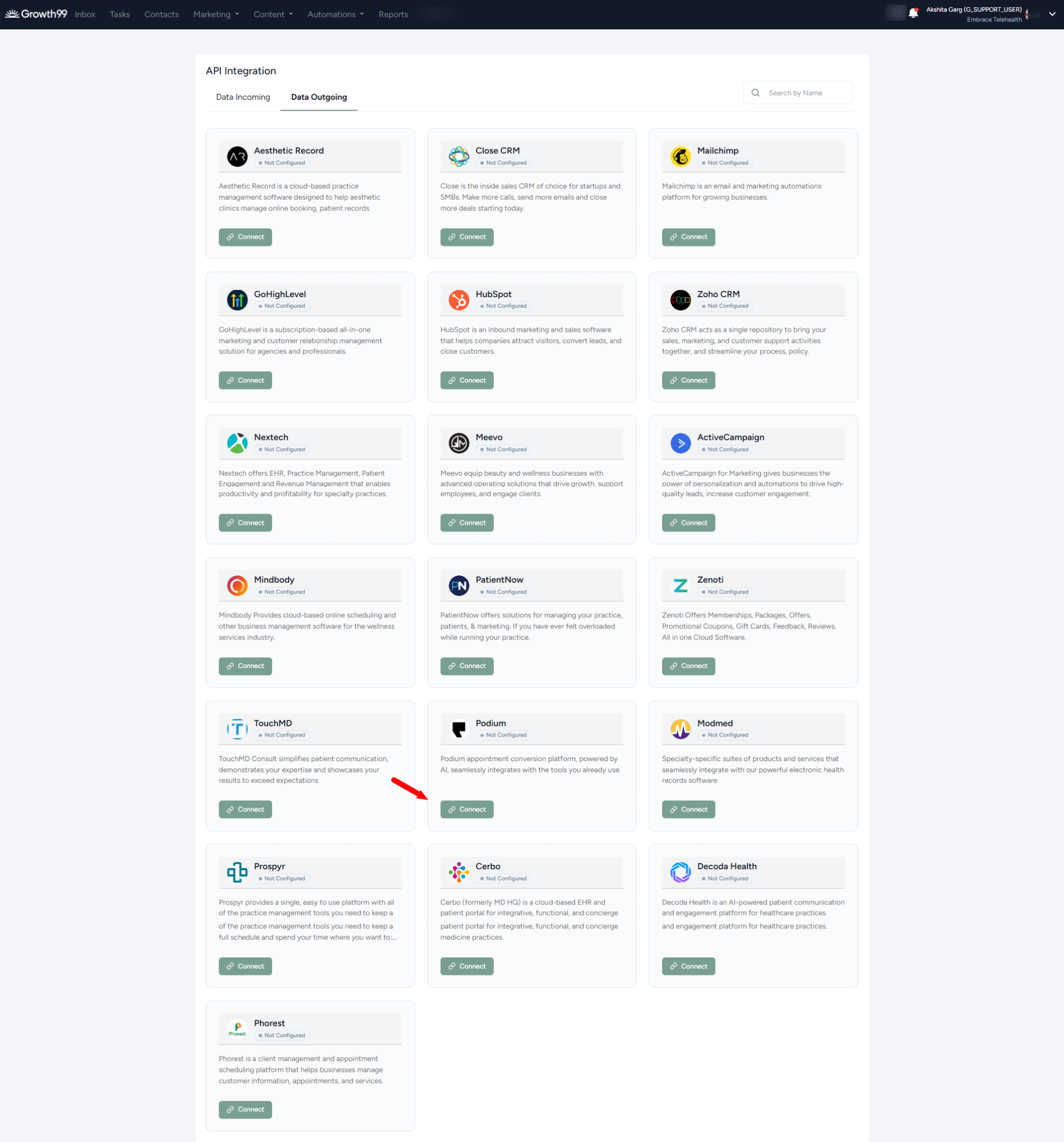
- Under API Integration, select the Data Outgoing tab. Scroll down to find Podium and click Connect.
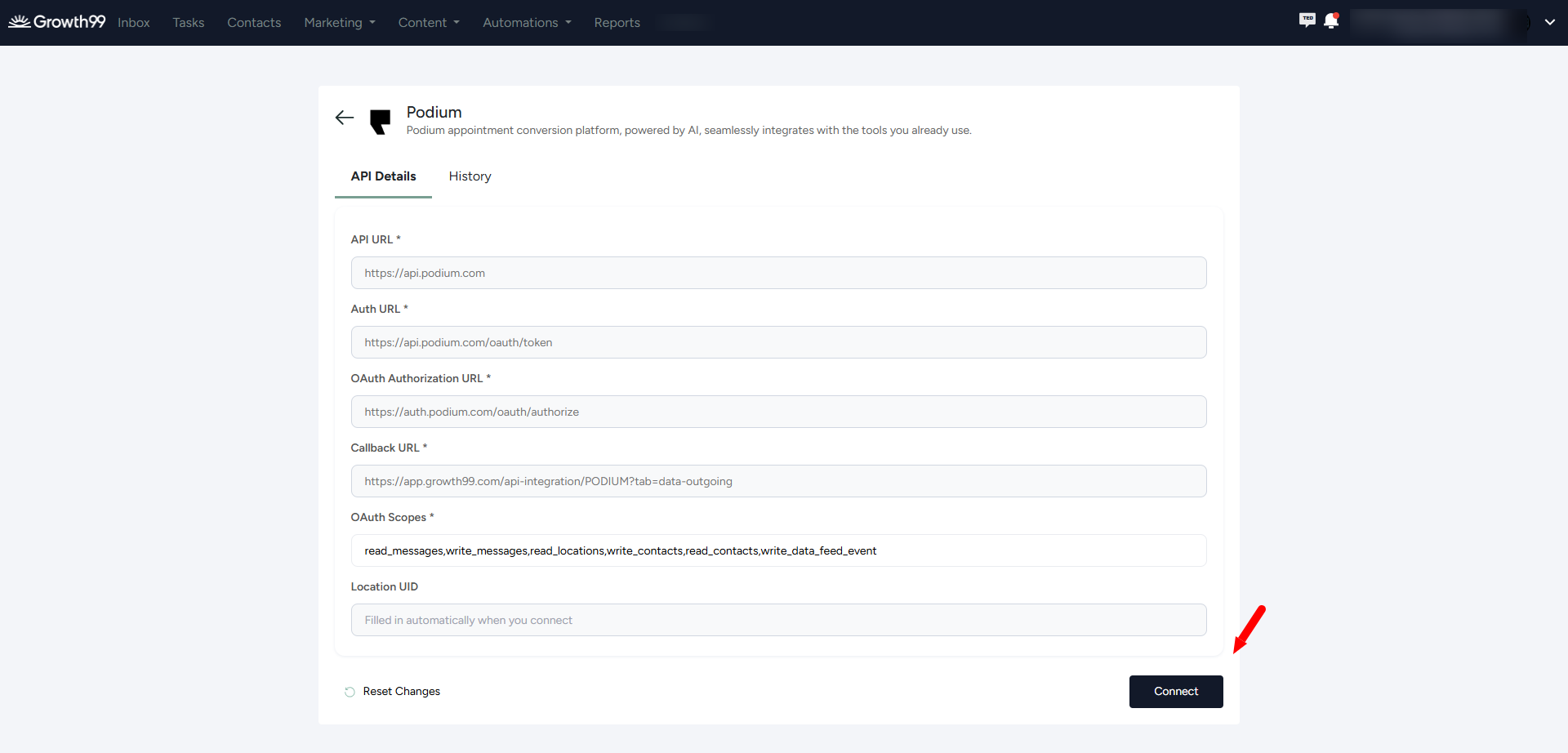
- You'll be redirected to the Podium configuration page. Review the pre-filled URLs and OAuth scopes, then click Connect.
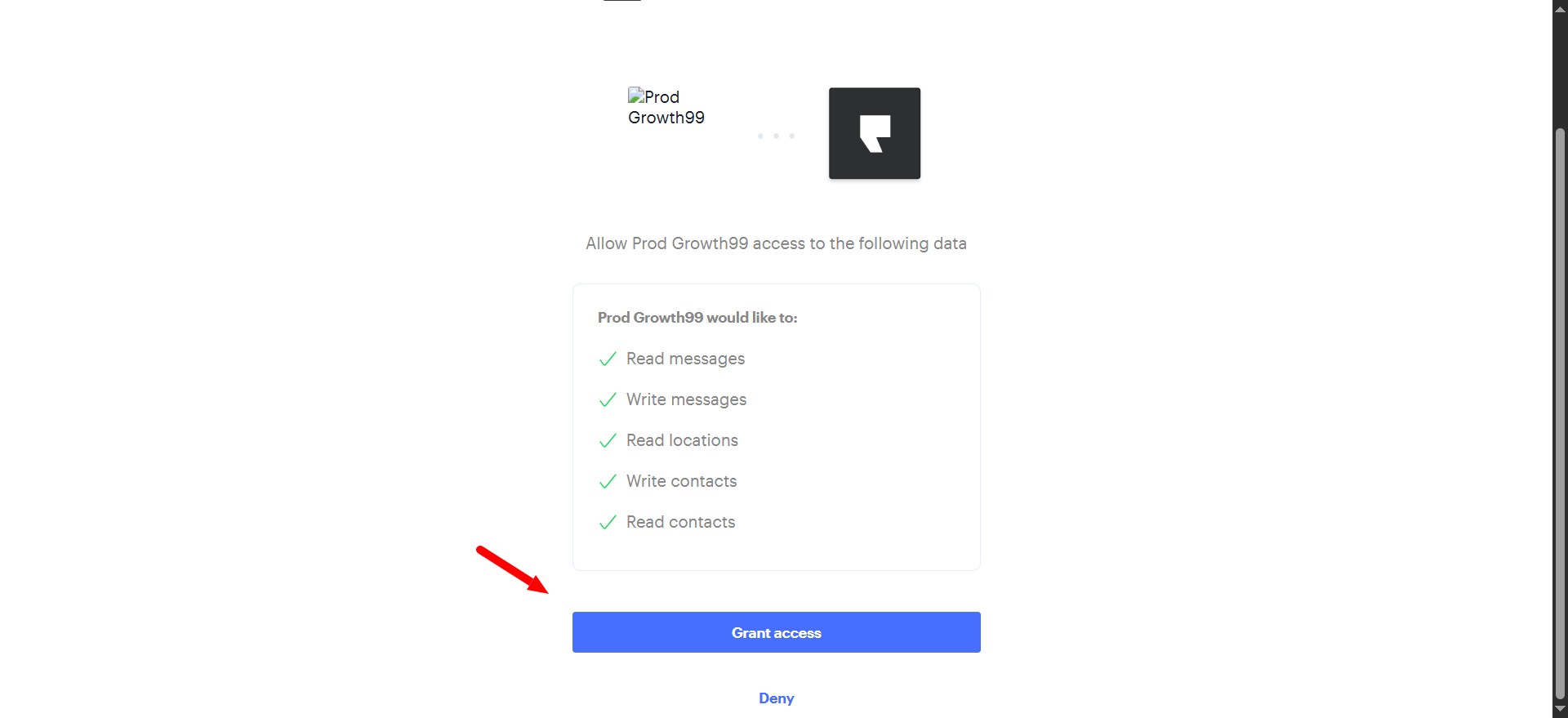
- You'll be redirected to Podium. Click Grant access to authorize the integration.
- After authorization, you'll be redirected back to Growth99+. The Location UID should populate automatically — this confirms a successful integration.
|
Tip Verify that the Location UID shown in Growth99+ matches the one in your Podium account. |
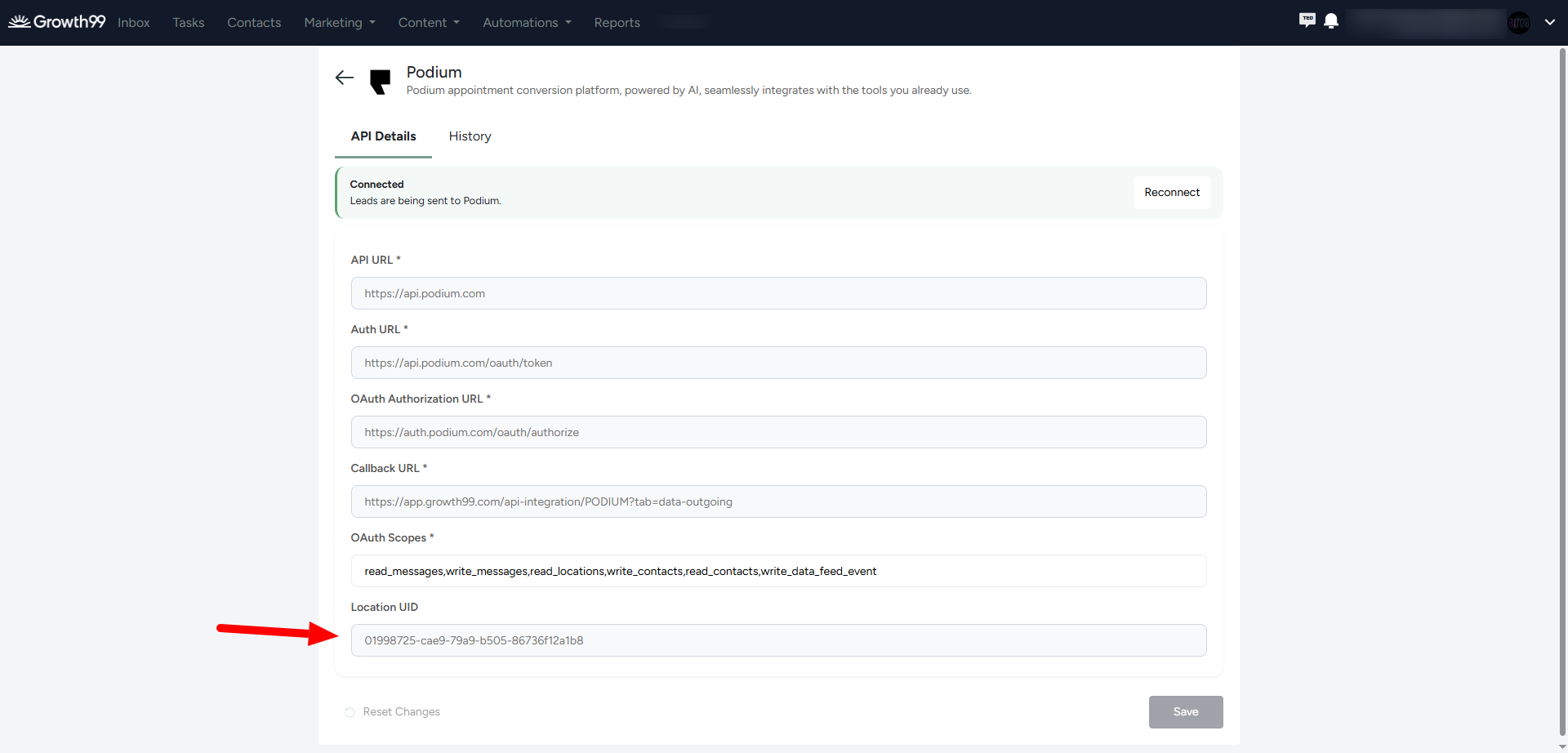
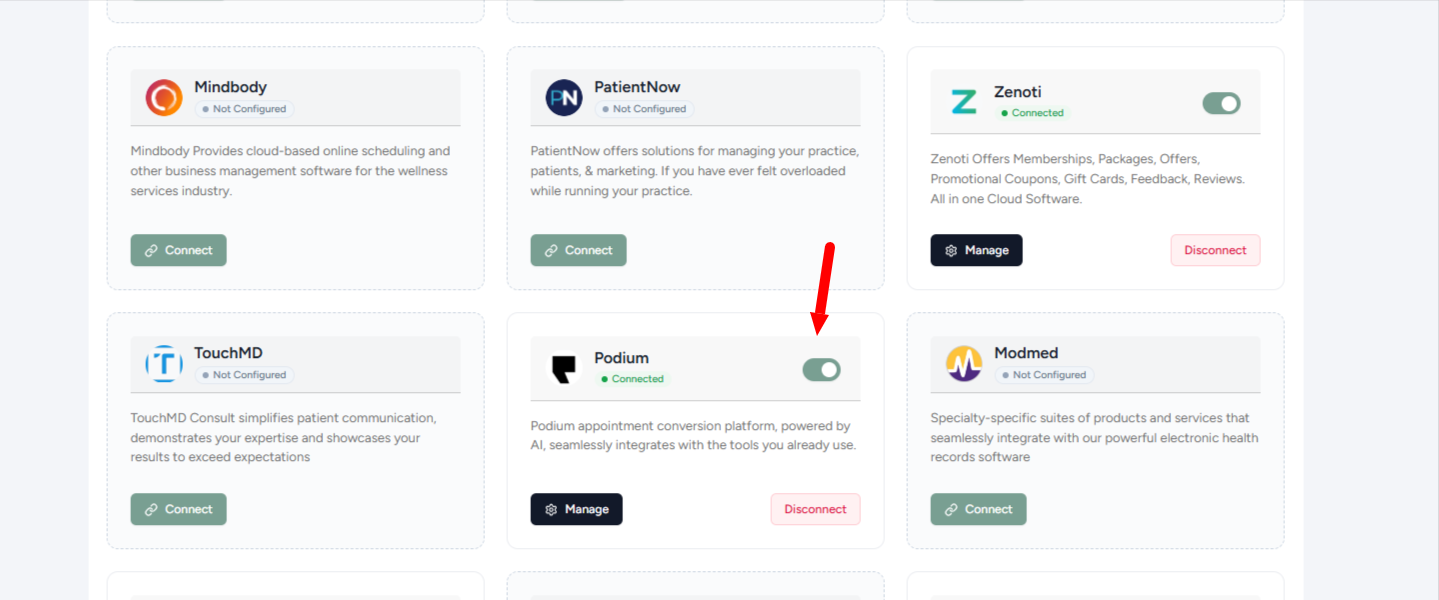
- Podium will now appear as Connected in your Third-Party Integrations list.
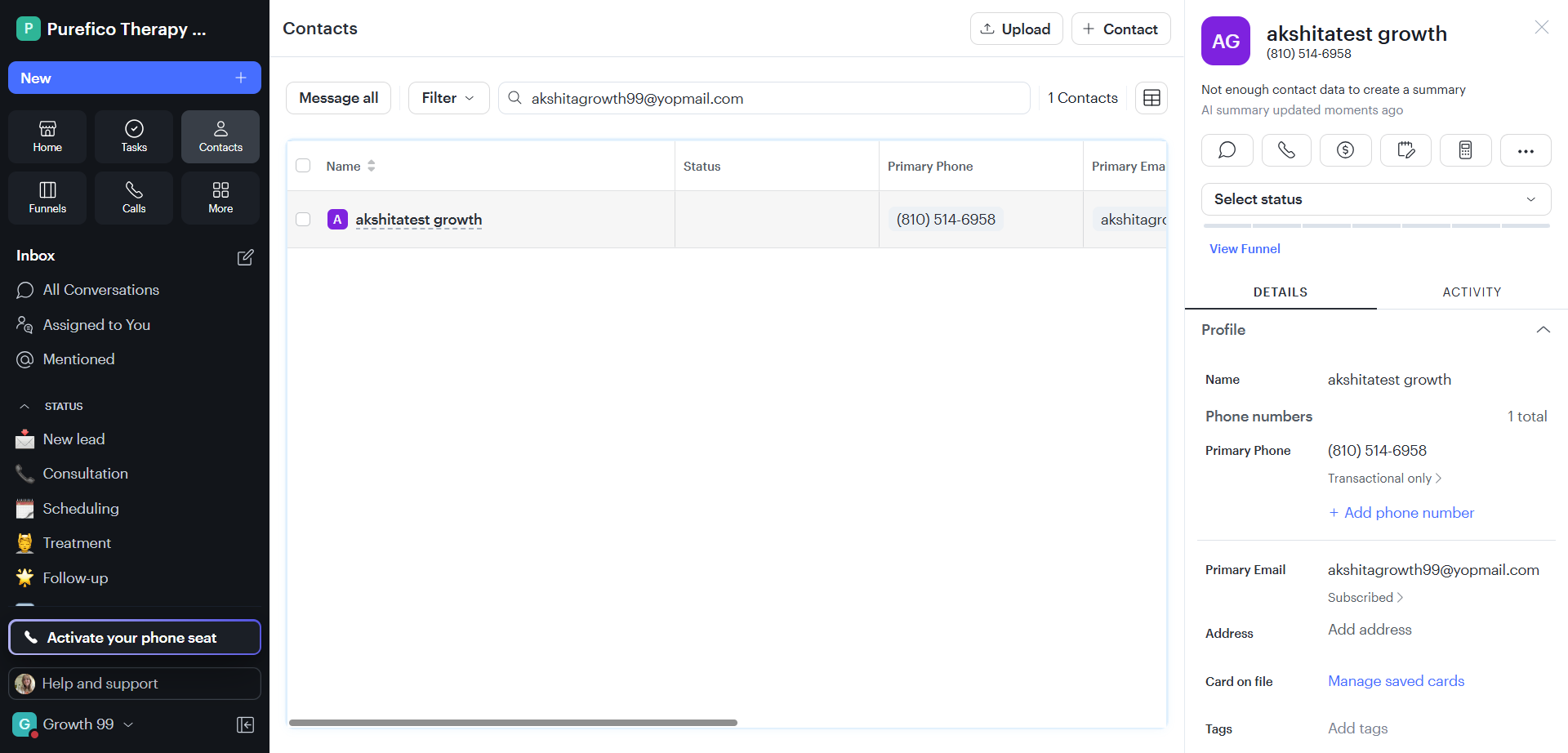
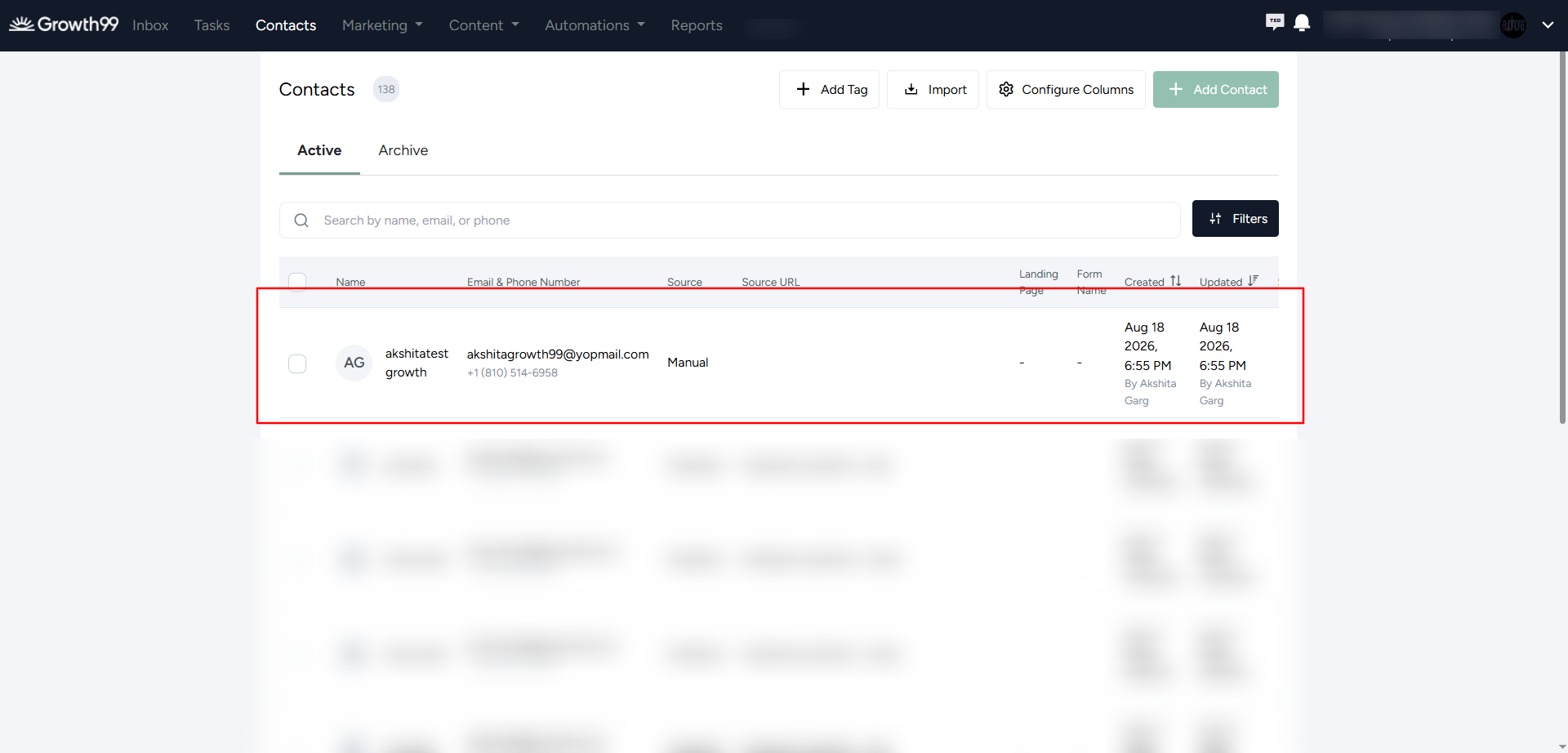
Create a test lead in Growth99+ from any source and verify it appears in Podium.
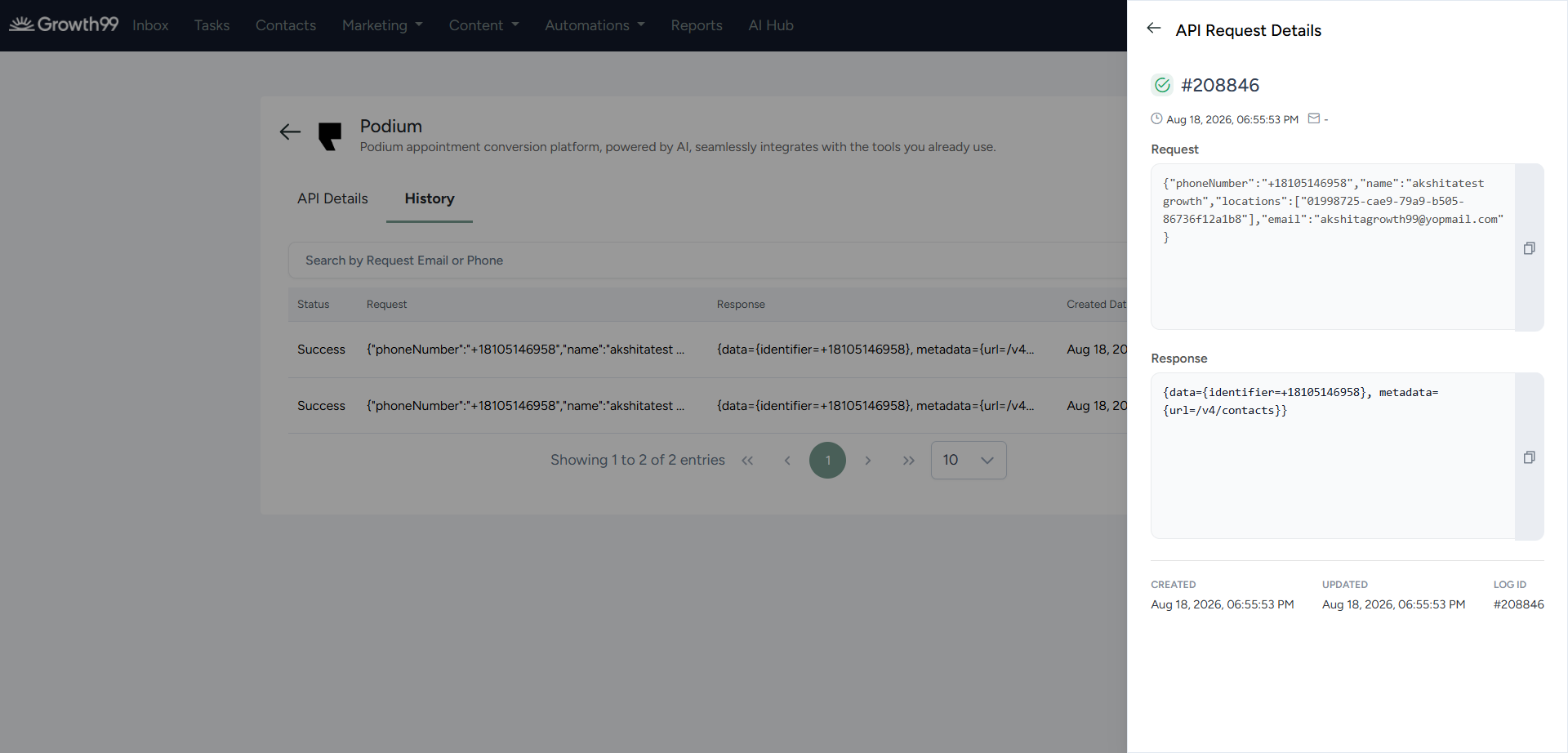
You can also open the History tab on the Podium configuration page in Growth99+ to confirm the lead was passed through successfully. The History log shows the request payload, Podium's response, and timestamps for every lead sent.
A few things to know about how the integration behaves:
- All lead sources transfer. Leads generated in Growth99+ from any source — Manual, Form, Landing Page, Chatbot, Self-Assessment, or Facebook — will be sent to Podium.
- Leads stay in Growth99+ too. Every lead continues to appear in the Contacts module in Growth99+. The integration doesn't move leads; it mirrors them.
- Leads appear in Podium's Contacts module. Transferred leads land in the standard Contacts area in Podium.
- Duplicate phone numbers are handled. If multiple leads with the same phone number come through Growth99+, the phone number is passed to Podium only on the first lead to avoid duplicates on Podium's side.
You have two options if you need to stop sending leads to Podium:
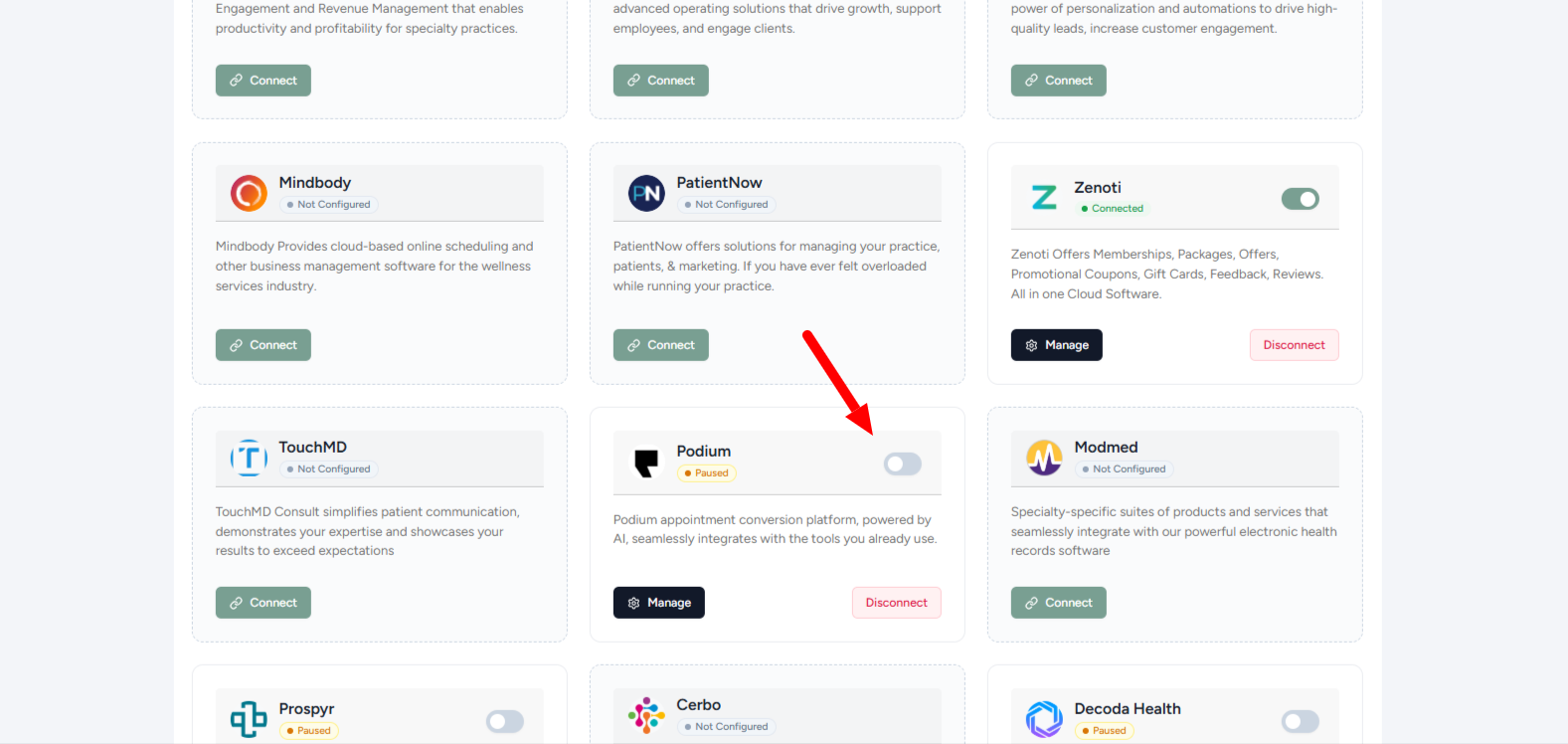
- Temporarily pause: Toggle the Podium integration off in the Third-Party Integrations list. Leads will stop flowing until you toggle it back on. Your Location UID and OAuth connection are preserved.
- Fully disconnect: Click Disconnect on the Podium card to remove the OAuth connection entirely. You'll need to re-run the OAuth flow in Step 1 to reconnect.
If the Location UID doesn't populate after you authorize Podium, if a test lead doesn't appear in Podium's Contacts module, or if the History tab shows failed requests, reach out to your Growth99 support contact or submit a ticket from the Support Tickets menu in Growth99+.